


This guide covers the 9 most damaging common robots.txt mistakes that quietly sabotage search rankings — including errors even experienced WordPress site owners miss. You will learn exactly what each common robots.txt mistake does to your crawl budget and visibility, and how to fix every one of them for free in minutes.
What this covers: accidental full-site blocks · CSS and JS blocking · Disallow vs noindex confusion · crawl-delay errors · missing sitemap directive · AI bot blocking mistakes · case sensitivity traps · how to test and verify your fix.
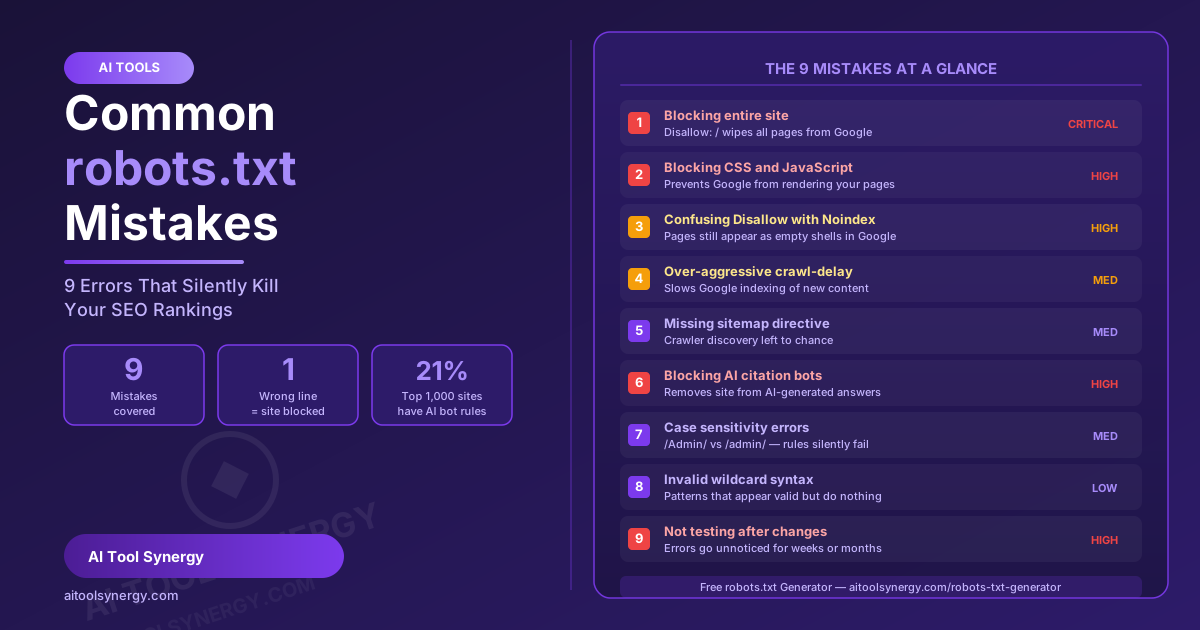
Common robots.txt Mistakes That Hurt SEO — 9 Errors to Fix Now
The robots.txt file is the smallest file on your website with the largest potential to break it. According to Google Search Central’s official robots.txt documentation, it sits at your domain root and instructs every crawler — from Googlebot to AI training bots — on exactly which parts of your site to access and which to skip. Get it right and you protect your crawl budget, your content, and your rankings. Get it wrong and a single misplaced character can silently remove your site from Google within days.
The problem with common robots.txt mistakes is that most produce no visible error. There is no warning in WordPress, no alert in your browser, and no instant notification from Google. The damage accumulates quietly over days or weeks until pages begin disappearing from search results and no obvious cause appears. This guide covers every major error with the exact code that causes it, why it hurts, and the precise fix — so you can audit your file today before any of them cost you rankings.
What Makes Common robots.txt Mistakes So Dangerous for SEO
Unlike most technical SEO errors, common robots.txt mistakes operate without warning. A broken image shows a placeholder. A slow server flags a red Core Web Vitals score. A robots.txt error? Googlebot reads your file, follows the rules exactly as written, and skips whatever you told it to skip — even if what you told it to skip was your entire site.
Understanding the file’s role makes the danger clearer. According to Search Engine Land’s robots.txt and SEO guide, robots.txt controls crawling only — not indexing. When Googlebot is blocked from crawling a page, that page may still appear in search results if other sites link to it, but as a blank entry with no title, no snippet, and no ability to rank for any specific query. This creates frustrating situations where pages are “in Google” but invisible to real searchers.
⚠ Critical distinction: robots.txt controls crawling. The noindex meta tag controls indexing. Confusing these two is one of the most damaging common robots.txt mistakes — and it is covered in full as Mistake 3 below.
For new websites especially, crawl budget is a limited resource. Search engines allocate crawl capacity based on site authority, speed, and structure. Wasting that budget on low-value pages, or accidentally blocking high-value ones, are both errors that directly slow down how quickly your content gets discovered, crawled, and ranked. A clean robots.txt file that guides crawlers toward your best pages and away from your worst is one of the highest-leverage technical SEO moves a new site can make.
Mistake 1: Blocking Your Entire Site — The Deadliest Common robots.txt Mistake
The single most catastrophic entry in the list of common robots.txt mistakes is also the simplest: a Disallow: / rule under a wildcard user-agent. This two-character path tells every crawler on the internet to avoid every page on your site — including Googlebot and Bingbot.
Accidental full-site block
User-agent: *
Disallow: /
User-agent: *
Disallow: /wp-admin/
Disallow: /wp-login.php
Disallow: /?s=

Sitemap: https://yoursite.com/sitemap_index.xml
Impact: Googlebot and every other crawler will skip your entire website. Pages linked to from other sites may still appear in search results as empty shells, but they cannot rank for any query and have no visible title or description.
How does this happen? Most commonly during site migrations, when a developer sets a temporary block-all rule to prevent indexing of a staging environment, then forgets to remove it before going live. It also happens when site owners copy a robots.txt template without reading it carefully. SEO professionals call this the “nuclear block,” and it can cost months of rankings before anyone notices it.
Catching this common robots.txt mistake early means checking your live file immediately after any robots.txt change. Visit https://yoursite.com/robots.txt directly in a browser — what appears there is exactly what Googlebot is reading. If you see Disallow: / under User-agent: *, fix it immediately by replacing it with specific directory blocks only.
Mistake 2: Blocking CSS and JavaScript — A Common robots.txt Mistake With Hidden Consequences
Years ago, blocking stylesheets and scripts from crawlers was widely recommended SEO advice. Search engines at that time couldn’t render JavaScript and had no use for CSS. That advice is now dangerously outdated, and following it is a common robots.txt mistake with consequences that are hard to diagnose precisely because they show up as ranking drops rather than crawl errors.
Google today renders your pages exactly as a browser does — loading CSS, executing JavaScript, and evaluating the visual result to understand your content, layout, and mobile-friendliness. If Googlebot cannot access your CSS files, it cannot determine whether your site is mobile-responsive. If it cannot execute JavaScript, it may miss dynamically loaded content entirely. According to Google’s robots.txt creation guide, blocking these resources is one of the most harmful configurations a site can have.
User-agent: *
Disallow: /wp-content/themes/
Disallow: /wp-includes/
Disallow: /*.css
Disallow: /*.js
User-agent: *
Disallow: /wp-admin/
Disallow: /wp-login.php
Disallow: /?s=
Disallow: /feed/
Allow: /wp-admin/admin-ajax.php
✅ Rule to remember: Never block /wp-content/, /wp-includes/, or any pattern matching .css or .js files. These are resources Googlebot needs to evaluate your pages for mobile-friendliness, Core Web Vitals, and content quality. This common robots.txt mistake can cause your site to fail Google’s mobile-friendly test without any direct error message.
Mistake 3: Confusing Disallow With Noindex — The Most Misunderstood Common robots.txt Mistake
This is arguably the most misunderstood of all common robots.txt mistakes. Many site owners believe that placing a URL under Disallow in robots.txt will prevent that page from appearing in Google search results. It will not. Disallow controls crawling only. The noindex directive — placed in a meta tag inside the page’s HTML or as an HTTP response header — controls whether a page enters Google’s index. These are fundamentally different mechanisms.
| Directive | Lives in | Controls | Effect on search results |
|---|---|---|---|
Disallow: /page/ | robots.txt file | Crawling only | Page may still appear — as an empty shell with no snippet |
<meta name="robots" content="noindex"> | HTML <head> tag | Indexing only | Page crawled but removed from search results |
X-Robots-Tag: noindex | HTTP response header | Indexing only (works on PDFs too) | Page crawled but removed from search results |
The dangerous scenario this common robots.txt mistake creates: if you use Disallow to hide a page from Google, but other websites link to that URL, Google can still discover and “index” the URL — it just has no content to index. The page then appears in search results as a blank entry with no title, no description, and no ability to rank. To properly remove a page from search results, it must remain crawlable (not Disallowed) so that Googlebot can actually read the noindex instruction from its HTML.
The rule: Use robots.txt Disallow to conserve crawl budget — blocking low-value pages you simply don’t need crawled. Use noindex to actively remove pages from search results. Never use Disallow as a substitute for noindex. The fix is counterintuitive: to delist a page, you must keep it crawlable so Googlebot can actually read the noindex tag.
Mistakes 4 and 5: Crawl-Delay Settings and Missing Sitemap — Two Quiet Errors That Slow Indexing
Crawl-Delay: Throttling Your Own Indexing Speed
The Crawl-delay directive tells crawlers how many seconds to wait between consecutive requests to your server. Used correctly on high-traffic sites with limited server capacity, it prevents overload. Used incorrectly on small blogs and new websites, it becomes a self-inflicted bottleneck that slows down how quickly Google indexes new content.
User-agent: *
Crawl-delay: 30
User-agent: *
Disallow: /wp-admin/
Disallow: /wp-login.php

# Only add Crawl-delay if your
# hosting logs show server errors
Impact: A 30-second crawl-delay on a site with 50 pages forces Googlebot to crawl extremely slowly, pushing newly published content to the back of the indexing queue. For most small WordPress sites, omit this directive entirely — Googlebot is already self-throttling.
Missing Sitemap Directive: A Missed Opportunity
Not declaring your sitemap in robots.txt is a missed opportunity rather than a damaging error, but for new sites where crawl budget is tight, it is a meaningful one. When Googlebot visits your robots.txt file, it can immediately follow a sitemap reference to discover every important page on your site — without relying on internal links alone.
User-agent: *
Disallow: /wp-admin/
Disallow: /wp-login.php
User-agent: *
Disallow: /wp-admin/
Disallow: /wp-login.php

Sitemap: https://yoursite.com/sitemap_index.xml
For WordPress sites running Rank Math, the sitemap URL is typically https://yoursite.com/sitemap_index.xml. Adding this single line to your robots.txt means every crawler that reads the file — including Googlebot on its very first visit — immediately knows where to find a complete map of your content. This is especially valuable for new sites where page authority is low and some posts may not be linked internally yet.
Mistake 6: Blocking the Wrong AI Bots — A Common robots.txt Mistake That Kills Referral Traffic
Blocking AI crawlers has become standard advice in 2026 — and for good reason. AI training bots harvest your content to build commercial AI models without attribution or compensation. But one of the increasingly common robots.txt mistakes among site owners acting on that advice is going too far: blocking every bot with “AI” in its name, including the citation bots that actively bring visitors to your site.
There are two completely different types of AI crawlers. Training crawlers — like GPTBot and ClaudeBot — download your content to train large language models. Retrieval or citation bots — like OAI-SearchBot and PerplexityBot — visit your page specifically to answer a live user query and include a clickable link to your site in the response. Blocking the second type is a common robots.txt mistake that removes your site from AI-generated answers at exactly the moment that AI search is becoming a significant traffic channel.
| Bot user-agent | Company | Type | Action |
|---|---|---|---|
GPTBot | OpenAI | Training | Block |
OAI-SearchBot | OpenAI | Citation — sends traffic | Allow |
ClaudeBot | Anthropic | Training | Block |
Claude-SearchBot | Anthropic | Citation — sends traffic | Allow |
Google-Extended | Gemini AI training only | Block (does not affect Google Search) | |
PerplexityBot | Perplexity | Citation — sends traffic | Allow |
CCBot | Common Crawl | Training dataset | Block |
According to Google’s official crawler documentation, Google-Extended is completely separate from Googlebot — blocking it has zero effect on your Google Search rankings while preventing your content from being used to train Gemini. Our guide on how to stop AI from scraping your website covers the full list of training bots, the exact robots.txt code to block them, and additional methods like Cloudflare’s AI Crawl Control for bots that ignore robots.txt entirely.
Mistakes 7 and 8: Case Sensitivity Traps and Wildcard Syntax Errors in robots.txt
Case Sensitivity: Small Letters, Big Consequences
Robots.txt URL paths are case-sensitive. A rule of Disallow: /WP-Admin/ will not block /wp-admin/ — they are treated as two completely different paths. This subtle issue creates silent gaps in your blocking rules where crawlers slip through unnoticed, and it works in the opposite direction too: accidentally capitalizing a path in a Disallow rule for a page you actually need crawled can mean your content never gets indexed.
User-agent: *
Disallow: /WP-Admin/
Disallow: /WP-Login.php
Disallow: /Search/
User-agent: *
Disallow: /wp-admin/
Disallow: /wp-login.php
Disallow: /?s=
Wildcard Syntax: When * Works and When It Doesn’t
Robots.txt supports the * wildcard character to match any sequence of characters in a path. It works within paths — for example, Disallow: /*?sessionid= blocks all URLs containing that parameter. Where site owners run into trouble is using wildcards in ways that appear valid but behave unexpectedly or are simply ignored by some crawlers.
# Trying to block all PHP files
Disallow: /*.php$

# Trying to block all parameters
Disallow: *?
# Block specific login file only
Disallow: /wp-login.php

# Block search parameter pages
Disallow: /?s=
Disallow: /*?sessionid=
When in doubt, use explicit paths rather than wildcard patterns. They work consistently across all search engine crawlers and AI bots. Use our free robots.txt generator to produce validated syntax automatically.
🤖 Generate a Perfect robots.txt — Free, No Signup
Stop worrying about common robots.txt mistakes. Our free generator builds a complete, correctly formatted robots.txt file — including AI bot blocking and WordPress directory protection — in seconds. Download and paste into Rank Math directly.
Generate robots.txt Free →Mistake 9: Not Testing After Every Change — The Most Avoidable Common robots.txt Mistake
Every edit to your robots.txt file carries risk. Not testing immediately after making changes is one of the most avoidable common robots.txt mistakes, yet it is the one most consistently skipped — usually because the person making the edit assumes they typed it correctly. A single missed character, a wrong directory path, or an accidental extra line can cause damage that takes weeks to notice and weeks more to recover from.
Visit your live file in a browser
Go to https://yoursite.com/robots.txt directly. What appears there is the exact file every crawler is currently reading. If it doesn’t match what you saved, the update didn’t apply correctly.
Test in Google Search Console
Go to Google Search Console → Settings → robots.txt. The built-in tester shows you whether Googlebot is currently allowed to crawl any specific URL. Test your homepage, your most recent post, and any URL you added a Disallow rule for.
Make testing a permanent habit
Every robots.txt change — no matter how small — deserves a test within minutes of saving. Skipping verification has cost sites months of rankings damage simply because an error went unnoticed. Build this into your workflow and it costs under two minutes every time.
How to Find and Fix Common robots.txt Mistakes on Your Site
Auditing for common robots.txt mistakes on your existing site takes three steps and about five minutes. Here is the exact process:
Step 1 — Check your live file. Type https://yoursite.com/robots.txt into your browser. You should see a plain text file with your current rules. If you see a 404 error, your file is missing — which means all crawlers use the default “allow everything” behavior. Not harmful by itself, but you have no control over which directories get crawled and no sitemap declared.
Step 2 — Test critical URLs in Google Search Console. Under Settings → robots.txt, use the tester to enter your homepage URL, your most recent blog post, and any URL you have explicitly Disallowed. Confirm that the pages you want crawled show “Allowed” and that the directories you want blocked show “Blocked.”
Step 3 — Rebuild it cleanly if needed. If your file contains any of the common robots.txt mistakes described here, the most reliable fix is to regenerate it from scratch using our free robots.txt generator. Select which AI bots to block, add your sitemap URL, configure your WordPress directory protection, and download a clean, correctly formatted file in seconds. For WordPress sites with Rank Math, paste the output directly into Rank Math → General Settings → Edit robots.txt — no FTP access required.
Pairing a correct robots.txt with well-written meta tags including noindex directives gives crawlers the clearest possible picture of your site’s content hierarchy. Also see our guides on how to write meta tags for SEO and how to create SEO-friendly URLs — these three files and tags work together as the technical SEO foundation every site depends on.
Frequently Asked Questions About Common robots.txt Mistakes
The most damaging errors in a robots.txt file are: using Disallow: / which blocks your entire site from Google; blocking CSS and JavaScript files that Googlebot needs to render pages; confusing the Disallow directive with the noindex tag; setting an overly aggressive crawl-delay on small sites; and omitting the sitemap URL. Any one of these can significantly reduce search visibility, sometimes within days.
Not directly, but indirectly it has a major impact. robots.txt determines what Googlebot can crawl, which affects which pages get indexed, how crawl budget is spent, and whether Google can access the CSS and JavaScript needed to evaluate page quality. Errors that block important pages or render-critical files can cause ranking drops that take weeks to recover.
Disallow in robots.txt tells crawlers not to visit a URL. The noindex meta tag tells search engines not to include a page in their index. A Disallowed page can still appear in Google search results if other sites link to it — it just shows as an empty shell. To properly remove a page from search results, use noindex and keep the page crawlable so Googlebot can read the tag.
Visit yoursite.com/robots.txt in a browser to see the live file. Then use Google Search Console (Settings → robots.txt) to test specific URLs against your current rules. This tells you immediately whether Googlebot is allowed or blocked from crawling any page. Test your homepage and key content pages after every robots.txt edit.
Yes — blocking CSS and JavaScript is one of the most impactful errors you can make in a robots.txt file. Google renders pages like a browser does, using your stylesheets and scripts to evaluate layout, mobile-friendliness, and content. Blocking these files means Google cannot fully assess your pages, which can hurt rankings and cause failures in Google’s mobile-friendly test.
No — blocking all AI bots wholesale is itself a mistake to avoid. Block AI training crawlers (GPTBot, ClaudeBot, CCBot) that use your content to train AI models without attribution. Allow AI citation bots (OAI-SearchBot, PerplexityBot, Claude-SearchBot) that visit your pages to answer live user queries and link back to your site. Block selectively, not wholesale.
WordPress users with Rank Math can edit robots.txt directly inside WordPress: go to Rank Math → General Settings → Edit robots.txt. Generate a clean file using our free robots.txt generator, paste the content into Rank Math, and save. No FTP, no cPanel, no hosting panel access needed.
Yes — URL paths in robots.txt are case-sensitive. A rule of Disallow: /Admin/ will not block /admin/. Always match the exact case of your real URL paths. WordPress core directories are always lowercase — /wp-admin/, /wp-content/, /wp-includes/. Case mismatches are one of the more subtle errors that silently fail to block the paths you intend to protect.
Crawl budget is the number of pages Googlebot will crawl on your site within a given time period, based on your site’s authority and server capacity. robots.txt directly shapes how that budget is spent. Blocking low-value pages like /wp-admin/ and search result pages reserves the budget for your real content. Errors that block the wrong pages waste crawl budget and slow down indexing of your most important posts and pages.
Final Thoughts: Fix These 9 Errors Once and Protect Your Rankings for Good
Most site owners encounter common robots.txt mistakes once, leave them unnoticed for months, then face a recovery process that takes longer than the original fix would have. The good news is that fixing your robots.txt is genuinely a one-time job — a five-minute audit followed by a clean rebuild, and the file works correctly for the lifetime of your site with only occasional updates as your structure evolves.
The checklist is short: allow Googlebot and Bingbot unconditionally, block only specific low-value WordPress paths, never touch CSS or JavaScript directories, use noindex rather than Disallow when you want pages out of search results, always declare your sitemap, block AI training bots selectively while keeping citation bots open, match URL path casing exactly, use explicit paths instead of guessing at wildcard syntax, and test within minutes of every change. Address all of these and common robots.txt mistakes become something your site never has to recover from again.
Start with the free robots.txt generator to produce a clean, validated file that handles every one of these requirements automatically — AI bot blocking, WordPress directory protection, sitemap declaration, and correct syntax all included. No signup, no cost, download in seconds.
🤖 Fix Your robots.txt Now — Free Generator
Generate a clean, error-free robots.txt file with correct WordPress paths, selective AI bot blocking, and your sitemap URL included. Paste directly into Rank Math — no FTP needed.
Open Free robots.txt Generator →Related Articles
🛠️ Looking for free tools?
Check out our collection of 17+ free online tools — no signup, no cost. Finance calculators, SEO tools, AI detectors and more.