


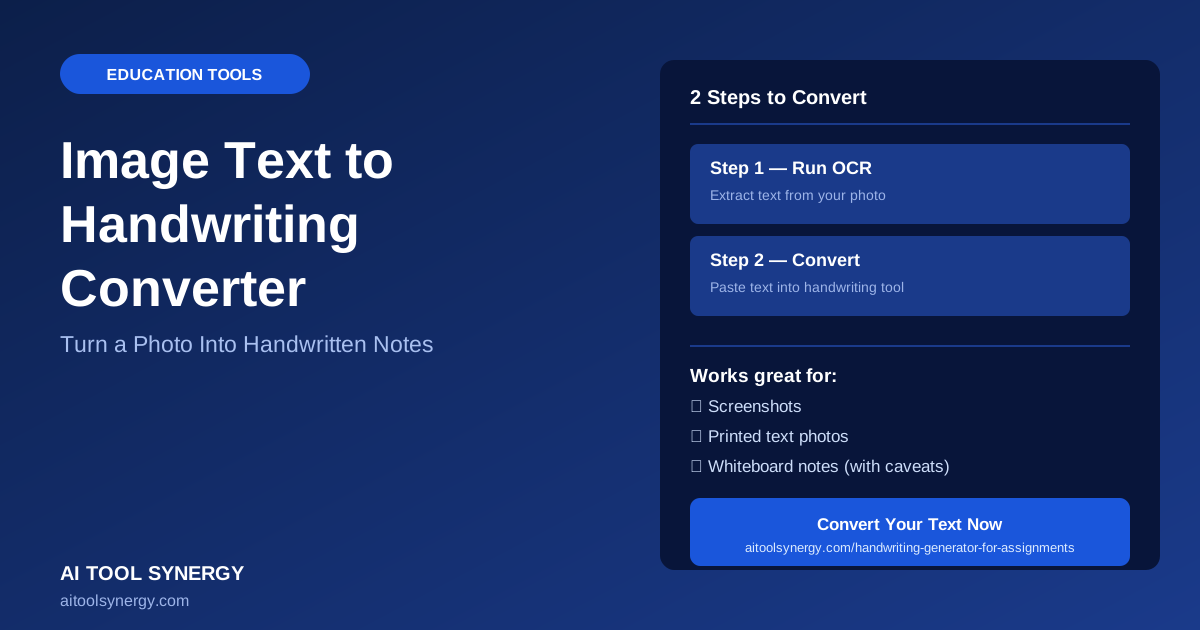
Image Text to Handwriting Converter: How to Turn a Photo Into Handwritten Notes
If you’ve got a photo of text — a screenshot, a snapped picture of a printed page, or a photo of a whiteboard — and you want it to look handwritten, you’re actually looking for an image text to handwriting converter, not a regular text to handwriting tool. The difference matters: your text is locked inside the image as pixels, not as selectable characters, so there’s a step you need to take first before any handwriting tool can use it.
This guide covers exactly how to pull text out of an image and convert it to handwriting, the free tools that do the extraction step, and the specific cases — screenshots, printed photos, whiteboard shots — where the process differs slightly. If you already have plain typed text rather than an image, our broader guide on how to convert typed text to handwriting covers that simpler case directly.
An image text to handwriting converter is genuinely useful any time the words you need exist only as pixels — a textbook photo, a saved meme with a caption, a screenshot of a group chat, or a scanned worksheet someone emailed you as a JPG. Rather than retyping all of it by hand, an image text to handwriting converter workflow gets you from photo to finished, paper-styled page in a few short minutes.
What Is an Image Text to Handwriting Converter?
An image text to handwriting converter is really a two-tool process, not one single converter. First, an OCR (Optical Character Recognition) tool reads the text out of your image and turns it into selectable, copyable characters. Second, a handwriting generator takes that extracted text and renders it onto a paper-style canvas in a handwriting font. No free tool currently does both steps in a single click, because OCR and handwriting rendering are two genuinely different technologies solving two different problems.
This is a different workflow from simply uploading a picture to a handwriting tool to display it — that places the image itself on the page as a picture. An image text to handwriting converter, by contrast, extracts the actual words from the image and turns those words into new handwritten text. Knowing which of the two you actually need before you start saves a lot of wasted clicking between tools.
Our handwriting generator lets you upload an image to place it visually on the page (a diagram, drawing, or photo sitting next to your handwritten text). That’s different from what this guide covers: extracting the text content from inside an image so it can be rendered as new handwriting. If you want the picture itself to appear on the page, you don’t need OCR at all — just upload it directly in the tool.
Image-to-Text vs Our Built-In Image Upload Feature — What’s the Difference?
This distinction trips a lot of people up, so it’s worth spelling out clearly. If you want a diagram, chart, or drawing to visually appear on your handwritten page, you upload that image directly — no OCR needed, no text extraction, the image just sits on the paper as a picture. If you instead have a photo where the actual words are what matters — a screenshot of an article, a photo of a printed worksheet — you need an image text to handwriting converter workflow, starting with OCR, because the handwriting tool can’t “read” an image and rewrite its words for you.
Once you know which situation you’re in, the rest of the process is straightforward.
How to Convert Photo Text to Handwriting (Full Workflow)
To convert photo text to handwriting using an image text to handwriting converter workflow, you’ll run the image through a free OCR tool, copy the resulting text, then paste it into a handwriting generator. The whole process typically takes two to three minutes for a single photo, most of which is spent double-checking the OCR result for accuracy before you generate the final handwritten page.
This is the same two-stage logic used to convert PDF to handwritten notes — extract first, then render — except the extraction tool here is OCR designed for photos and screenshots rather than a PDF text-layer reader. Once the text is out, both workflows finish in the exact same handwriting generator.
Step-by-Step: Convert Screenshot Text to Handwriting
-
1Take or upload your screenshotMake sure the text is reasonably sharp and well-lit if it’s a photo rather than a digital screenshot.
-
2Run it through a free OCR toolUpload the image to an OCR service to extract the text it contains.
-
3Proofread the extracted textOCR isn’t always perfect — quickly check for misread characters or garbled words before moving on.
-
4Paste the corrected text into a handwriting generatorUse our free handwriting generator — no signup required.
-
5Pick your font, paper, and ink colorMatch the style to the content — neat print for technical text, flowing cursive for personal notes.
-
6Generate and downloadDownload as a clean PNG or scanned PNG, ready to print or share.
Best Free OCR Tools for Extracting Text From Images
A handful of free OCR tools handle the image-to-text extraction step well, and which one fits your image text to handwriting converter workflow best depends mostly on the source. i2ocr supports dozens of languages and works directly in the browser with no signup. OnlineOCR.net is another solid free option, particularly for printed text and document photos. If you’re already inside a photo app, Google Lens has a built-in “copy text” feature that lets you select and copy text straight out of any photo on your phone without a separate upload step.
Two more worth bookmarking: NewOCR, a free browser-based tool that handles a wide range of image formats and multiple languages, and Adobe’s free JPG-to-text tool, useful if you’re already inside the Adobe ecosystem for other document work. All five of these are genuinely free for the extraction step of an image text to handwriting converter workflow, with no account required.
Converting a Photo of Printed Text to Handwriting
Photos of printed text — book pages, worksheets, printed handouts — generally produce the cleanest results from any image text to handwriting converter, since printed fonts are consistent and easy for recognition software to read accurately. For best results, photograph the page straight-on rather than at an angle, make sure lighting is even with no shadows across the text, and crop the image to just the text area before running OCR. A clean, well-lit photo of printed text can often hit near-perfect OCR accuracy, which means almost no manual correction before you move to the handwriting step.
Converting a Photo of a Whiteboard or Handwritten Notes to Handwriting
Whiteboard photos and photos of someone else’s handwriting are the hardest case for OCR, since standard OCR engines are built to recognize printed characters, not handwriting or marker strokes on a whiteboard. Expect lower accuracy here than with printed text, and plan on spending more time proofreading and correcting the extracted text before you convert it. If the whiteboard content is short, it’s sometimes faster to simply retype it manually rather than fight with OCR accuracy on handwritten or marker-written content.
Common Mistakes When Using an Image Text to Handwriting Converter
These are the mistakes that most often produce a messy or inaccurate result from an image text to handwriting converter:
- Skipping the proofreading step. OCR errors carry straight through into your handwritten output if you don’t catch them first.
- Using a blurry or angled photo. OCR accuracy drops sharply with poor image quality — a straight-on, well-lit shot makes a real difference.
- Expecting OCR to read handwriting well. Standard OCR tools are built for printed text and struggle significantly with handwritten or whiteboard content.
- Confusing image upload with text extraction. Uploading a photo directly places the picture itself on the page — it doesn’t extract or convert the words inside it.
For a quick accuracy check, count how many obviously wrong words the OCR output has. More than a couple per paragraph usually means the photo quality is the problem — retake it straight-on with better lighting before trying again.
Image Text to Handwriting Converter vs Manual Retyping — Which Is Faster?
Once you’ve used an image text to handwriting converter a few times, the speed advantage over manual retyping becomes obvious for anything longer than a sentence or two.
- Fast for printed, clear text
- Needs a quick proofread pass
- Struggles with handwriting or low-quality photos
- Best for screenshots, printed pages
- Slower for anything beyond a short excerpt
- 100% accurate regardless of image quality
- Best for short whiteboard notes or messy handwriting photos
- No tool dependency at all
Tips for Clean OCR Results Before Converting to Handwriting
Good OCR input makes the entire image text to handwriting converter process faster: photograph text straight-on rather than at an angle, use natural or even lighting without harsh shadows, crop tightly to just the text you need, and avoid photographing through glass or screens when possible, since glare consistently confuses OCR engines. Once your text is clean and extracted, the usual handwriting realism principles apply on our free generator — keep variation turned on and match your font to the content type.
- An image text to handwriting converter always needs two steps — OCR extraction, then handwriting rendering — never one.
- Printed text photographed straight-on with even lighting gives the cleanest, most accurate results.
- Whiteboard photos and handwritten source images are the hardest case — budget extra proofreading time.
- Don’t confuse text extraction with our tool’s separate image-upload feature, which displays a picture rather than converting its words.








One Response
[…] (4 Free Methods Compared) Education Tools How to Convert PDF to Handwritten Notes (Free Guide) Education Tools Image Text to Handwriting Converter (Free, No Signup) AI & Tech Can AI Generate Handwriting? How It Works (2026) Education Tools Best Free Text to […]