


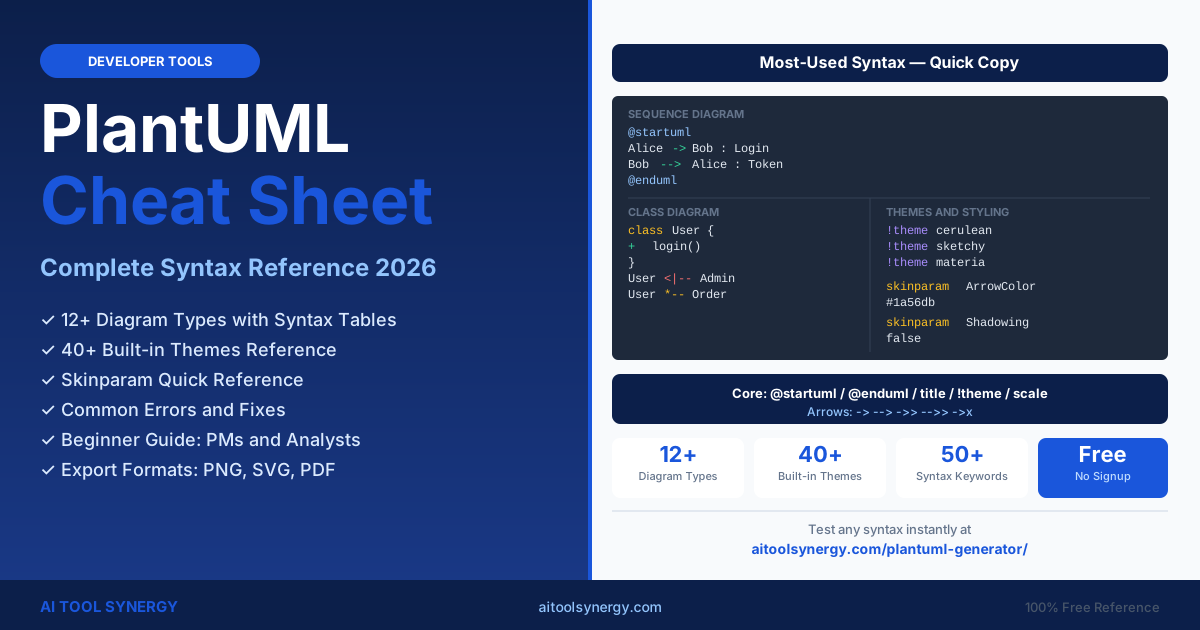
PlantUML Cheat Sheet: Complete Syntax Reference for All Diagram Types
This plantuml cheat sheet covers every major diagram type with ready-to-copy syntax tables, a complete skinparam reference, theme list, export commands, and an error-fixing guide — all in one place. Bookmark it as your daily PlantUML reference for any project.
Whether you write diagrams in VS Code, in our free PlantUML generator online, in Confluence, or in GitLab, this plantuml cheat sheet gives you the exact syntax you need without searching through documentation.
Sections cover core syntax, sequence, class, activity, use case, state, ER, deployment, wireframe, mind map, WBS, themes, skinparam, export formats, and common errors. The final section is a quick-start plantuml cheat sheet for non-developers, PMs, and students.
PlantUML Cheat Sheet: Core Syntax and File Structure
Every plantuml cheat sheet starts with the same foundation: the @startuml / @enduml wrapper, comment syntax, and global commands that apply to every diagram type. The table below covers the core PlantUML commands you will use across all diagram types.
| Element | Syntax | Example |
|---|---|---|
| Start marker | @startuml | @startuml |
| End marker | @enduml | @enduml |
| Diagram title | title TEXT | title Login Flow |
| Single-line comment | ' text | ' This is a comment |
| Multi-line comment | /' ... '/ | /' Block comment '/ |
| Include file | !include filename | !include header.iuml |
| Apply theme | !theme NAME | !theme cerulean |
| Scale diagram | scale N | scale 1.5 |
| Header text | header TEXT | header Confidential |
| Footer text | footer TEXT | footer Page %page% |
| Caption | caption TEXT | caption Figure 1 |
| Page break | newpage | newpage Section 2 |
| Hide empty members | hide empty members | Applied globally |
| Left to right layout | left to right direction | Flips layout axis |
Alt+D preview.PlantUML Cheat Sheet for Sequence Diagrams
Sequence diagrams are the most-used PlantUML type. They show time-ordered interactions between participants. Use the syntax below for participants, arrow types, notes, activation boxes, and control flow blocks including alt, loop, and group.
Participants and Lifelines
| Element | Syntax |
|---|---|
| Participant (box) | participant "Name" as P |
| Actor (stick figure) | actor "Name" as A |
| Boundary | boundary "Name" as B |
| Control | control "Name" as C |
| Entity | entity "Name" as E |
| Database | database "Name" as DB |
| Collections | collections "Name" as Col |
| Queue | queue "Name" as Q |
Arrows and Messages
| Arrow Type | Syntax | Meaning |
|---|---|---|
| Solid arrow (sync) | A -> B : message | Synchronous call |
| Dashed arrow (return) | A --> B : message | Return / response |
| Thin solid | A ->> B : message | Async / event |
| Thin dashed | A -->> B : message | Async return |
| Self message | A -> A : internal | Self-call loop |
| Lost message | A ->x B : lost | Message with X end |
Notes, Dividers and Control Flow
| Element | Syntax |
|---|---|
| Note over participant | note over A : text |
| Note right/left | note right of A : text |
| Multi-line note | note over A, B ... end note |
| Activate lifeline | activate A |
| Deactivate lifeline | deactivate A |
| Divider | == Phase Name == |
| Delay | ...5 minutes later... |
| Alt / else block | alt condition ... else ... end |
| Optional block | opt condition ... end |
| Loop block | loop N times ... end |
| Parallel block | par ... and ... end |
| Group block | group Label ... end |
| Reference | ref over A, B : title |
PlantUML Cheat Sheet for Class and Object Diagrams
Class diagrams support the full UML 2.x notation including attributes, methods, visibility modifiers, and six relationship types. Object diagrams use the same syntax but with instances rather than class definitions.
Classes, Interfaces and Enums
| Element | Syntax |
|---|---|
| Class | class ClassName |
| Abstract class | abstract class Name |
| Interface | interface Name |
| Enum | enum Color { RED\nGREEN\nBLUE } |
| Annotation | annotation Name |
| Namespace / package | namespace pkg.name { ... } |
| Spot (custom icon) | class Name <<(S,#FF7700) Spot>> |
Visibility Modifiers
| Symbol | Visibility |
|---|---|
+ | Public |
- | Private |
# | Protected |
~ | Package (default) |
Relationships
| Relationship | Symbol | Meaning |
|---|---|---|
| Inheritance (extends) | A <|-- B | B extends A |
| Realization (implements) | A <|.. B | B implements A |
| Composition | A *-- B | A is composed of B |
| Aggregation | A o-- B | A aggregates B |
| Association | A -- B | A is associated with B |
| Dependency | A ..> B | A depends on B |
| Cardinality | A "1" *-- "many" B | Label both ends |
PlantUML Cheat Sheet for Activity and Use Case Diagrams
Activity diagrams (flowcharts) use a flow-based syntax with start, stop, actions, conditionals, loops, and parallel forks. Use Case diagrams define actors and scenarios with include and extend relationships.
Activity Diagram (New Syntax)
| Element | Syntax |
|---|---|
| Start node | start |
| End node | stop or end |
| Action | :Action text; |
| Note in flow | #note right ... end note |
| If / else | if (cond?) then (yes)\n...\nelse (no)\n...\nendif |
| While loop | while (cond?) is (yes)\n...\nendwhile (no) |
| Repeat loop | repeat\n...\nrepeat while (cond?) |
| Fork (parallel) | fork\n...\nfork again\n...\nend fork |
| Swim lane | |lane name|\n:Action; |
| Detach | detach |
| Arrow label | -> label; after action |
Use Case Diagram
| Element | Syntax |
|---|---|
| Actor | :Actor Name: |
| Use Case | (Use Case Name) |
| Association | :Actor: --> (Use Case) |
| Include | (A) .> (B) : include |
| Extend | (A) <. (B) : extend |
| Package (system box) | package "System" { ... } |
| Note | note "text" as N\nA .. N |
PlantUML Cheat Sheet for State, ER and Deployment Diagrams
State diagrams track object lifecycle through transitions. ER diagrams define data entities and their relationships using crow’s foot cardinality. Deployment diagrams map physical infrastructure with nodes, components, and links.
State Diagram
| Element | Syntax |
|---|---|
| Initial state | [*] --> StateName |
| Final state | StateName --> [*] |
| Transition with label | A --> B : trigger / action |
| Named state | state "Long Name" as S |
| Composite state | state S { A --> B } |
| Note on link | note on link ... end note |
| Concurrent state | state S { A\n--\nB } |
| History | [H] --> S |
ER Diagram
| Element | Syntax |
|---|---|
| Entity | entity "Name" as E { *pk : int\n--\nfield : type } |
| Primary key | * field : type (asterisk = PK) |
| One-to-many | E1 }|--|{ E2 : label |
| Zero-or-one | E1 |o--|| E2 |
| Zero-or-many | E1 }o--o{ E2 |
| Cardinality key | |o=zero/one, ||=one, }|=many |
Deployment Diagram
| Element | Syntax |
|---|---|
| Node | node "Server" as N |
| Component | component "App" as C |
| Database | database "DB" as D |
| Cloud | cloud "AWS" { ... } |
| Package group | package "Group" { ... } |
| Link with label | N --> C : HTTPS |
| Artifact | artifact "app.jar" as A |
Wireframe, Mind Map and WBS Syntax at a Glance
PlantUML’s Salt extension renders UI wireframe mockups using a text-table syntax. Mind Map and WBS (Work Breakdown Structure) diagrams use indented bullet notation. All three use their own @start keyword instead of @startuml.
Salt Wireframe (UI Mockups)
| Element | Syntax |
|---|---|
| Window title | {* Window Title | content } |
| Button | [ Button ] |
| Text input | "input text" |
| Checkbox (unchecked) | [] |
| Checkbox (checked) | [X] |
| Radio (off) | () |
| Radio (on) | (X) |
| Tabs | {/ Tab1 | Tab2 | Tab3 } |
| Tree node | { T | +-- item | +-- item } |
| Separator | -- (horizontal line) |
Mind Map
| Level | Syntax |
|---|---|
| Root (level 1) | * Root |
| Child (level 2) | ** Child |
| Grandchild (level 3) | *** Grandchild |
| Left branch | ** Left branch (auto-placed) |
| Checkbox task | [X] Done / [ ] Todo |
| Custom color | [#lightblue] Node |
| Icon | <&star> Node (OpenIconic) |
WBS (Work Breakdown Structure)
| Level | Syntax |
|---|---|
| Project root | + Project Name |
| Phase (level 2) | ++ Phase 1 |
| Task (level 3) | +++ Task 1.1 |
| Subtask (level 4) | ++++ Subtask |
| Minus branch (left) | -- Left branch |
| Completed task | [#green] +++ Done |
PlantUML Cheat Sheet: Themes and Skinparam Reference
This plantuml cheat sheet section covers the two styling systems: the built-in theme library (applied with !theme) and skinparam (individual property overrides). Use themes for quick visual changes and skinparam for precise control of colors, fonts, and borders on specific elements.
Applying a Theme
Add !theme THEME_NAME as the second line of your diagram, directly after @startuml. Themes affect all element colors, fonts, and borders globally and work with all diagram types.
Use this visual theme gallery to preview all 40+ built-in themes side by side before choosing one for your diagrams.
Skinparam Quick Reference
Skinparam overrides individual style properties. Apply globally or per-element type. Prefix with the element type for targeted styling (e.g. skinparam SequenceArrow...).
| Skinparam Property | Example Value | Effect |
|---|---|---|
skinparam backgroundColor | #f8f8f8 | Diagram canvas background |
skinparam ArrowColor | #1a56db | All arrow colors |
skinparam ParticipantBackgroundColor | #dbeafe | Sequence participant fill |
skinparam ClassBackgroundColor | #eff6ff | Class box fill |
skinparam ClassBorderColor | #1a56db | Class box border |
skinparam FontName | Helvetica | Global font family |
skinparam FontSize | 14 | Global font size (px) |
skinparam FontColor | #1e293b | Global text color |
skinparam Shadowing | false | Disable drop shadows |
skinparam Monochrome | true | Black and white output |
skinparam HandWritten | true | Sketchy hand-drawn style |
skinparam RoundCorner | 8 | Rounded corner radius |
skinparam Padding | 5 | Element padding |
skinparam dpi | 150 | Output resolution |
!theme when you want a consistent visual preset for the whole diagram. Use skinparam when you need to override specific colors or sizes that a theme does not control, or when you want to style only one element type (e.g. only sequence participants).Export Formats, Output Options and File Types
PlantUML can export to multiple formats from the command line using the -t flag followed by the format code. SVG and PNG work in both server and local mode. PDF export requires local mode with Java installed. Run java -jar plantuml.jar followed by the flags below.
| Format | CLI Flag | Notes |
|---|---|---|
| PNG (default) | -tpng | Works in all modes; best for documents |
| SVG | -tsvg | Scalable; best for web and Confluence |
-tpdf | Requires local Java mode | |
| ASCII art | -ttxt | Terminal and plain-text output |
| Unicode ASCII | -tutxt | Richer ASCII with Unicode chars |
| EPS (PostScript) | -teps | Vector format for print |
| LaTeX / TikZ | -tlatex | For LaTeX documents |
| Base64 PNG | -tpng:base64 | Embed directly in HTML img tags |
java -jar plantuml.jar -tsvg *.puml to export every diagram file in the current folder at once. Use the -o ./output/ flag to specify an output directory. This is the recommended approach for CI/CD documentation pipelines.PlantUML Cheat Sheet: Common Errors and Quick Fixes
The plantuml cheat sheet below covers the eight most frequent errors developers encounter. Most errors fall into three categories: missing dependencies (Graphviz or Java), syntax mistakes, or size limit breaches. Test your syntax in our free PlantUML generator to confirm it works before debugging locally.
| Error | Cause | Fix |
|---|---|---|
| Cannot find Graphviz dot | Graphviz not installed or not in system PATH | Install Graphviz + add to PATH, or switch to server mode (plantuml.render = PlantUMLServer) |
| Connection refused / timeout | Server mode with no internet, or wrong server URL | Check internet connection; verify server URL; switch to local mode if offline |
| Diagram too large / PLANTUML_LIMIT_SIZE | PNG pixel dimensions exceed default 4096px limit | Add -DPLANTUML_LIMIT_SIZE=8192 to your Java command arguments |
| java.lang.OutOfMemoryError | Very large diagram exceeds JVM heap limit | Add -Xmx1024m (or higher) to Java command; split large diagrams |
| unknown keyword / Syntax error on line N | Typo in keyword or wrong element syntax | Check exact keyword spelling at plantuml.com; verify @startuml/@enduml present |
| Error reading file | Wrong file path or insufficient read permissions | Check file path is correct and Java process has read access to the directory |
| Arrows or layout wrong | Default top-down layout not suited to diagram | Add left to right direction or use skinparam layoutEngine elk for complex graphs |
| Missing font / rendering artifacts | Required font not installed on the rendering machine | Install the font system-wide, or change skinparam FontName to a font that is available |
For a full list of PlantUML themes, skinparam properties, and language keywords, the official PlantUML language reference PDF is the authoritative source — updated with every major release.
Quick-Start Guide for Non-Developers (PMs, Analysts, Students)
You do not need to be a developer to use PlantUML. Project managers, business analysts, technical writers, and students can create useful sequence and activity diagrams with just three syntax rules. Here is the fastest path to your first working diagram.
- 1Open the Free Generator
Go to our free PlantUML generator. No login, no install, no Java needed. It works in any browser on any device.
- 2Write Your First Sequence Diagram
Copy this starter template:
@startuml→ new line →Customer -> Support : Send ticket→ new line →Support --> Customer : Confirm receipt→ new line →@enduml. Paste it in and click Generate. - 3Add More Steps
Each new line follows the pattern
Name -> Name : message. Use-->for return arrows. Addtitle My Diagramafter@startumlto add a title. That is all you need for a complete sequence diagram. - 4Apply a Theme
Add
!theme ceruleanas the second line of your diagram. This changes the visual style instantly. Try!theme minty,!theme materia, or!theme sketchyto find a look that suits your audience. - 5Export Your Diagram
Download your diagram as PNG for presentations and documents, or as SVG for websites and Confluence. For the VS Code workflow, see our plantuml editor vscode guide for the full IDE setup.
Keep this plantuml cheat sheet bookmarked — every syntax table on this page works with the free online generator, in VS Code with the jebbs.plantuml extension, and in Confluence, GitLab, and CI/CD pipelines using the official Docker image or JAR file.
PlantUML Cheat Sheet — Frequently Asked Questions
A plantuml cheat sheet is a quick-reference guide that lists PlantUML syntax commands, diagram type keywords, and styling options in one place. This page is a comprehensive plantuml cheat sheet covering all 12+ diagram types, themes, skinparam, export formats, and error fixes — all free to use with no download required.
Every PlantUML diagram starts with @startuml and ends with @enduml. Between those markers, write your diagram syntax depending on the type you need. Sequence diagrams use A -> B : message. Class diagrams use class Name { ... }. Activity diagrams start with start and end with stop.
The most common errors are: missing @startuml / @enduml markers, Graphviz not found (when using local mode), diagram too large (fix with -DPLANTUML_LIMIT_SIZE=8192), and typos in keywords. Use our free online generator to test syntax — it shows errors immediately without any local setup.
Add !theme THEME_NAME as the second line of your diagram, directly after @startuml. For example: !theme cerulean applies the cerulean blue theme. PlantUML has 40+ built-in themes including cerulean, materia, sketchy, cyborg, superhero, minty, and sandstone. Preview all themes at the-lum.github.io/puml-themes-gallery before choosing.
Skinparam is PlantUML’s CSS-like styling system for controlling individual element appearance. Use it to set background colors (skinparam ClassBackgroundColor #eff6ff), font sizes, arrow colors, border widths, and more. Skinparam can target all elements globally or specific element types. It works alongside !theme — skinparam overrides win over theme defaults.
Yes — PlantUML’s Activity diagram type is its flowchart system. Use start, stop, :Action;, if (condition?), while, and fork to build any flowchart. PlantUML activity diagrams also support swim lanes using the |lane name| syntax for cross-functional process maps.
In sequence diagrams, -> draws a solid arrow (used for calls and requests) and --> draws a dashed arrow (used for responses and return values). This matches UML 2 notation where solid arrows represent synchronous calls and dashed arrows represent return messages. Use ->> for async solid arrows and -->> for async dashed arrows.
PDF export requires local rendering mode with Java installed. Run java -jar plantuml.jar -tpdf diagram.puml in the command line. In VS Code, open the command palette, run PlantUML: Export Current Diagram, and select PDF. PNG and SVG work in all modes including server mode and the free online generator.
The official PlantUML Language Reference Guide PDF is the most complete downloadable reference, covering all diagram types in full detail. For a quick reference, bookmark this page — it covers the most-used syntax for all 12+ diagram types on a single scrollable page, and all examples work directly in our free online generator.
Related Articles








4 Responses
[…] Recommended themes for component diagrams: cerulean (professional blue), materia (clean material design), plain (minimal, good for print), and blueprint (dark technical style). See the full theme list in our PlantUML cheat sheet. […]
[…] alternative layout, the PlantUML documentation on ReadTheDocs organises them by diagram type. Our PlantUML cheat sheet includes the most commonly used skinparam properties for each diagram type in a quick-reference […]
[…] our PlantUML editor VSCode guide for export configuration, and our PlantUML cheat sheet for the full CLI flag […]
[…] For a full theme and skinparam reference including all deployment diagram property names, see our PlantUML skinparam guide. For all deployment element syntax in one place, bookmark our PlantUML cheat sheet. […]