


PlantUML Confluence Integration: Complete Setup Guide (2026)
Setting up plantuml confluence integration lets your team embed live, version-controlled UML diagrams directly inside Confluence pages — no image uploads, no broken links, no out-of-date screenshots. Diagrams update automatically when the source code changes and are tracked in Confluence page history.
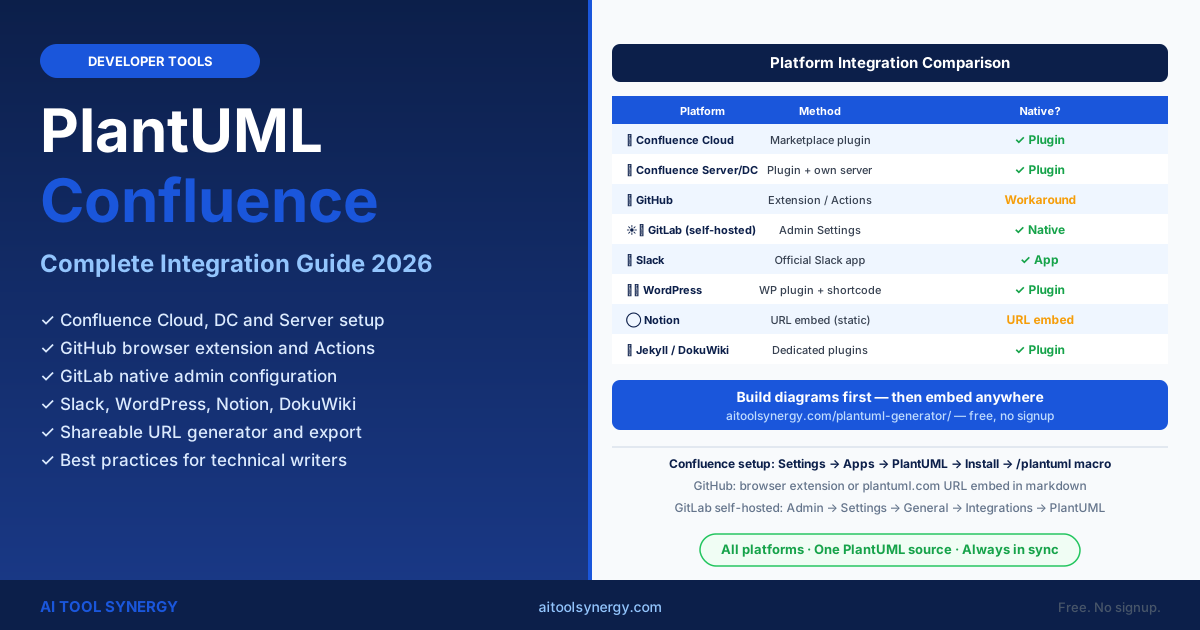
This guide covers the full plantuml confluence plugin setup for Cloud, Server, and Data Center, plus integration guides for GitHub, GitLab, Slack, WordPress, and Notion. Whether you are documenting microservices architecture or writing API specs, PlantUML integrates with every major platform your team uses.
For quick diagram generation before setting up any integration, our free PlantUML generator online lets you create and export diagrams in seconds — no install, no Java required. Use it alongside any of the integrations in this guide.
Why Use PlantUML Confluence Integration for Team Documentation?
The plantuml confluence integration solves the most common documentation problem: diagrams that go stale. When architecture diagrams live as uploaded image files, they quickly fall out of sync with the actual system. With PlantUML embedded directly in Confluence pages, the diagram source is part of the page — it rerenders whenever the page loads.
Confluence with PlantUML also enables version-controlled diagrams. Every edit to a diagram’s PlantUML code is tracked in Confluence page history, so you can compare how an architecture evolved over time alongside the text documentation that describes it.
PlantUML Confluence Plugin: Atlassian Marketplace Setup
The plantuml confluence plugin is available on the Atlassian Marketplace. Multiple vendors offer PlantUML plugins — the most widely used is PlantUML Diagrams for Confluence, which supports both Confluence Cloud and Data Center with a free tier for small teams.
- 1Open Confluence Settings
Go to Settings → Apps → Find new apps (Confluence Cloud) or Settings → Manage add-ons → Find new apps (Server/DC). You need Confluence Admin permissions to install apps.
- 2Search for PlantUML
Type PlantUML in the app search box. Look for PlantUML Diagrams for Confluence or Comala PlantUML. Check the reviews, install count, and whether it supports your Confluence edition (Cloud vs Server/DC).
- 3Install and Confirm
Click Install. Confirm the permissions dialog. The plugin typically activates within 30 seconds — no Confluence restart is needed on Cloud; Server/DC editions may require a service restart depending on the plugin.
- 4Test on a Page
Open any Confluence page in edit mode. Type
/plantumlin the editor to invoke the macro. A code input box appears — paste any PlantUML syntax between@startumland@enduml, then save the page to see the rendered diagram.
PlantUML Confluence Cloud vs Data Center vs Server
The plantuml confluence experience differs significantly between deployment types. Cloud users get managed plugin updates and simpler setup but less rendering control. Data Center and Server users can self-host a PlantUML rendering server for maximum performance, privacy, and offline support.
| Feature | Confluence Cloud | Data Center / Server |
|---|---|---|
| Plugin installation | Marketplace UI — one click | Marketplace or manual upload |
| PlantUML rendering | Plugin’s cloud renderer (vendor managed) | Configure own PlantUML server or use plantuml.com |
| Self-hosted PlantUML server | ✗ Not supported | ✓ Supported — point to your own server |
| Offline diagram rendering | ✗ Requires internet | ✓ Yes (with local server) |
| Diagram source privacy | Sent to vendor’s render server | Stays on your network if self-hosted |
| Free tier available | ✓ Yes (most plugins) | ✓ Some open-source options |
| PDF export of pages | Diagram included in page PDF | Diagram included in page PDF |
| Version history | Tracked with page edits | Tracked with page edits |
PlantUML Confluence Macros: Embedding and Editing Diagrams
Once the plantuml confluence plugin is installed, diagrams are embedded using a macro in the Confluence page editor. The macro wraps your PlantUML code and replaces it with a rendered image when the page is published. The source code is stored inside the page, not as a separate file.
Using the Macro in the Page Editor
@startuml
!theme cerulean

package "Microservices" {
  [User Service]
  [Order Service]
  [Payment Service]
}

database "Shared DB"

[User Service] --> "Shared DB"
[Order Service] --> "Shared DB"
[Order Service] --> [Payment Service]
@enduml
Most plantuml confluence plugins support the full skinparam property set, all 40+ built-in themes, and the !include directive for shared stylesheets — though !include from external URLs may be restricted in Cloud environments for security reasons.
Keyboard Shortcut for Macro Insertion
| Action | Confluence Cloud | Server / DC |
|---|---|---|
| Open macro browser | / in editor, type PlantUML | { in editor, type plantuml |
| Edit existing macro | Click on diagram → Edit | Double-click on diagram |
| Preview diagram | Preview button inside macro dialog | Preview button in macro editor |
PlantUML GitHub Integration: README and Pull Request Diagrams
GitHub does not natively render PlantUML in markdown files — unlike Mermaid, which has been native since 2022. However, there are three reliable approaches to embed PlantUML diagrams in GitHub README files, pull requests, and wikis.
Option 1: plantuml.com Server URL (Simplest)
Encode your PlantUML code in the official URL format and embed it as a markdown image. No plugin or GitHub Actions required.
Option 2: GitHub Browser Extension
The official PlantUML for GitHub browser extension renders PlantUML blocks fenced with backtick notation directly inside GitHub pages — including README files, issues, pull requests, and wikis. Available for Chrome and Firefox.
Option 3: GitHub Actions Auto-Export
Set up a GitHub Action that runs on every commit. The action installs PlantUML via Docker, generates PNG or SVG from all .puml files in your /docs/ folder, and commits exports back to the repository. For a detailed walkthrough, this developer guide on anoff.io covers the full GitHub Actions setup with PlantUML.
# .github/workflows/plantuml.yml
name: Generate PlantUML diagrams
on: [push]
jobs:
  build:
    runs-on: ubuntu-latest
    steps:
      - uses: actions/checkout@v3
      - name: Generate diagrams
        uses: cloudbees/plantuml-github-action@master
        with:
          args: -tsvg docs/**/*.puml
      - name: Commit generated diagrams
        uses: EndBug/add-and-commit@v9
        with:
          message: "Auto-generate PlantUML diagrams"
GitLab Native PlantUML Support and Browser Extension
GitLab has native PlantUML support on self-hosted instances — no plugin needed. A GitLab administrator enables it in Admin settings by pointing to a PlantUML rendering server. Once enabled, any user can write fenced PlantUML code blocks in markdown files, wikis, merge request descriptions, and issue comments.
Enabling PlantUML in GitLab Admin Settings
| Step | Path in GitLab Admin |
|---|---|
| 1. Open admin settings | Admin Area → Settings → General |
| 2. Expand Integrations section | Settings → General → Integrations |
| 3. Enable PlantUML | Check “Enable PlantUML” and enter server URL |
| 4. Set server URL | Use https://www.plantuml.com/plantuml or your own server |
| 5. Save | Click Save changes — works immediately, no restart needed |
```plantuml
@startuml
[Frontend] --> [API Gateway]
[API Gateway] --> [User Service]
[User Service] --> [Database]
@enduml
```
PlantUML Slack Integration: Diagram Sharing in Channels
The official PlantUML Slack integration allows team members to generate and share diagrams directly inside Slack channels without leaving the messaging interface. See the full list of PlantUML running options including Slack at plantuml.com/running.
Setting Up PlantUML in Slack
- Visit the PlantUML Slack integration page and click Add to Slack
- Grant the required permissions to the app
- In any channel, type
/plantumlfollowed by your diagram code - The app responds with a rendered PNG image posted inline in the channel thread
/plantuml
@startuml
Alice -> Bob : Feature request
Bob --> Alice : Confirmed for Sprint 3
@enduml
PlantUML Confluence vs WordPress Plugin and Notion Embeds
Beyond plantuml confluence, PlantUML integrates with several other content platforms. The WordPress and Notion options are simpler to configure but offer less native integration than the Confluence plugin ecosystem.
| Platform | Integration Method | Native? | Best For |
|---|---|---|---|
| Confluence (Cloud) | Marketplace plugin + macro | ✓ Plugin | Enterprise team wikis |
| Confluence (Server/DC) | Self-hosted plugin + own server | ✓ Plugin | Private network documentation |
| GitHub | Browser extension / GitHub Actions | ✗ Workaround | Dev-first open source projects |
| GitLab (self-hosted) | Admin settings → PlantUML server | ✓ Native | DevOps teams on GitLab |
| WordPress | PlantUML plugin + shortcode | ✓ Plugin | Technical blogs and public docs |
| Notion | Embed via plantuml.com PNG URL | ✗ URL embed | Individual or small team notes |
| Jekyll | jekyll-plantuml plugin | ✓ Plugin | Static site documentation |
| DokuWiki | PlantUML plugin from DokuWiki store | ✓ Plugin | Open source team wikis |
WordPress PlantUML Setup
Install the PlantUML Renderer plugin from the WordPress Plugin Directory. Once activated, wrap your diagram code in [plantuml]...[/plantuml] shortcodes in any post or page. The plugin renders diagrams via the plantuml.com server — no local Java install required.
Notion Embed (No Plugin Required)
Notion does not have an official PlantUML plugin. The workaround is to encode your diagram source into a plantuml.com PNG URL and insert it as an image block. While this works for static diagrams, the image does not update automatically when you change the diagram source — you must regenerate the URL manually.
PlantUML Confluence Best Practices for Technical Writing Teams
Getting the most from plantuml confluence requires a few workflow conventions. These practices keep diagrams consistent, maintainable, and easy for non-developers to understand and update over time.
- One diagram per Confluence macro. Avoid embedding multiple diagrams in a single macro block. Separate diagrams are independently editable and easier to review in page history.
- Always add a title to embedded diagrams. Use
title My Architecture — v2.3inside the PlantUML code so the rendered diagram is self-labelled even when viewed outside the page context. - Apply a consistent theme. Add
!theme cerulean(or your team’s chosen theme) to every diagram in the wiki. This creates a uniform look across all documentation pages without any manual styling. - Link diagrams to related pages. Add a Confluence internal link below each embedded diagram pointing to the page that documents the components shown. This creates a navigable documentation graph.
- Use plantuml confluence for architecture decisions. Embed a component or C4 diagram alongside Architecture Decision Records (ADRs) to give the context that text alone cannot provide.
- Review diagram source in pull requests. If you use Confluence for a team that also uses Git, store the canonical
.pumlsource file in your repository and import it into Confluence on each release cycle to keep both systems in sync.
URL Generator, Shareable Links and Offline Export Options
Every PlantUML diagram can be shared as a URL — no Confluence or GitHub account required. The plantuml.com server encodes your diagram source in the URL path, so anyone with the link can view or download the rendered PNG or SVG without any tools installed.
Building a Shareable URL
The URL format is: https://www.plantuml.com/plantuml/FORMAT/ENCODED_SOURCE
- Replace
FORMATwithpng,svg,pdf, ortxt - Replace
ENCODED_SOURCEwith your diagram code encoded in PlantUML’s deflate+base64 format - Use the online encoder at plantuml.com, or any PlantUML editor including our free PlantUML generator, to get the encoded string automatically
Offline Export Without Java
To export PNG or SVG without Java, use VS Code in server mode or our browser-based generator. For batch CI/CD export, the official Docker image handles all diagram types without a local Java install.
See our PlantUML editor VSCode guide for export configuration, and our PlantUML cheat sheet for the full CLI flag reference.
PlantUML Confluence — Frequently Asked Questions
Go to Settings → Apps → Find new apps and search for PlantUML in the Atlassian Marketplace. Install PlantUML Diagrams for Confluence. Open any page in edit mode, type /plantuml to insert the macro, paste code between @startuml and @enduml, then save to render.
Most plantuml confluence plugins offer a free tier for small teams (typically under 10 users). Paid plans unlock larger diagram rendering limits, priority support, and advanced export features. For self-hosted Confluence Server and Data Center, several fully free open-source plugin options are available on the Atlassian Marketplace regardless of team size.
PlantUML works on both Confluence Cloud and Server/Data Center through different mechanisms. Cloud uses a marketplace plugin that sends diagram code to the vendor’s render server. Server/DC can use plugins or point to a self-hosted PlantUML server for full privacy and offline support.
Yes — most plantuml confluence plugins support the full theme and skinparam system. Add !theme cerulean or skinparam properties inside the macro code block and they apply to the rendered diagram. The !include directive may be restricted in Cloud for security reasons.
The simplest approach is to embed a plantuml.com image URL in your markdown file: . Replace ENCODED_SOURCE with the encoded version of your diagram — our free generator provides this automatically. Alternatively, install the official PlantUML for GitHub browser extension which renders PlantUML code blocks natively in GitHub pages without any server URL encoding.
Yes — self-hosted GitLab instances support native PlantUML when enabled by an admin in Settings → General → Integrations. GitLab.com (SaaS) does not support native PlantUML as of 2026 — use the browser extension or the plantuml.com URL embed for gitlab.com projects instead.
Notion has no native PlantUML plugin. The workaround is to encode your diagram as a plantuml.com PNG URL and add it as an image block using the Embed option. The image is static — it does not auto-update when the source changes. For live-updating team diagrams, Confluence with the PlantUML plugin is the better choice.
Yes — when you export a Confluence page to PDF (using the built-in Export feature), embedded PlantUML diagrams are included as rendered images in the PDF output. The quality depends on the plugin — most render at PNG resolution, while some premium plugins support SVG-based PDF rendering for vector-quality output at any print size.
For Confluence-first teams, the Marketplace plugin is best — diagrams live inside pages and update with page history. For GitLab self-hosted teams, the native admin setting is simplest. For cross-platform teams, our free PlantUML generator is a practical starting point before embedding diagrams anywhere.
Related Articles