


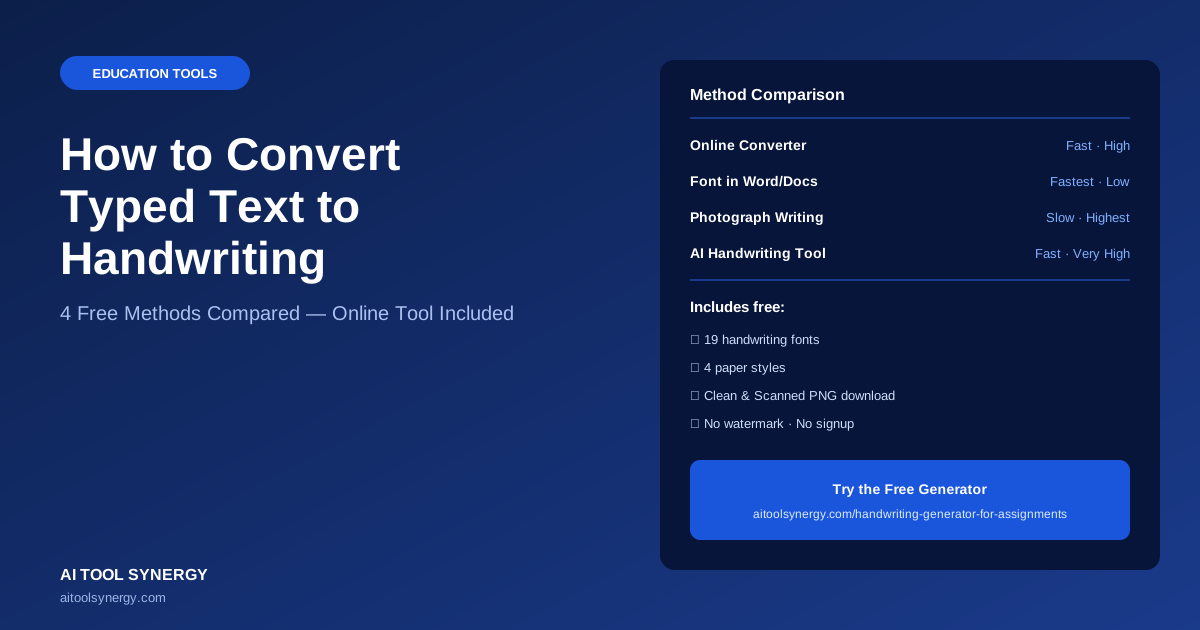
How to Convert Typed Text to Handwriting Online (4 Free Methods Compared)
If you’ve typed something on a screen and need it to look like it came off a pen, you have more options than you might think. People convert typed text to handwriting for school notes, study guides, personal letters, greeting cards, and worksheets — and each method gets you there with a different mix of speed, realism, and control. This guide walks through the four real ways to convert typed text to handwriting online, compares them side by side, and shows exactly how to do it free in under two minutes.
There’s no single “best” way to convert typed text to handwriting — it depends on whether you need a quick personal note or a polished, paper-textured page with mixed formatting and embedded images. We’ll cover font-based methods, document software, photographing your own writing, and AI-assisted handwriting generators, so you can pick the one that actually fits what you’re making.
What Does It Mean to Convert Typed Text to Handwriting?
To convert typed text to handwriting means taking digital, typed content — a paragraph, an essay, a list of notes — and rendering it visually so it looks like it was written by hand with a pen or pencil, rather than printed by a machine. This can be done in a few different ways: by applying a handwriting-style font to the text, by physically rewriting the content and photographing it, or by using a dedicated online tool that renders the text onto a paper-style background with natural variation built in.
The result is usually downloaded as an image (PNG) or PDF, ready to print, submit, or share. The quality of the conversion depends heavily on the method: a basic handwriting font applied in a word processor looks noticeably different from text rendered on canvas with randomized letter spacing, slight rotation, and a textured paper background, which is what makes purpose-built converters look more convincing.
Most people assume the font is what makes converted handwriting look real. In practice, the rendering method matters more — a canvas-based tool with variation built in beats a “nicer” font applied flatly in a word processor almost every time.
Why People Convert Typed Text to Handwriting Online
The reasons people look to convert typed text to handwriting online are more varied than you’d expect. Students use it to turn typed notes into neat, handwritten-style study guides for revision. Teachers use it to build handwriting practice worksheets without writing each one out by hand. People with shaky or hard-to-read handwriting use it to produce a legible version of their own notes for sharing. And plenty of people just want a handwritten-style birthday card, invitation, or personal letter without the time cost of writing every word by hand.
What all of these have in common is that the underlying content is the person’s own — they’re changing the visual format of their own typed work, not generating new content. That distinction matters: a good text to handwriting converter is a formatting tool, the same way a font change or a print layout is, not a content-generation tool.
Method 1: Use a Free Online Text to Handwriting Converter
This is the fastest and most consistent way to convert typed text to handwriting. You paste or type your text into a browser-based tool like our free handwriting generator, pick a handwriting-style font, choose a paper background, and click generate. The tool renders your text directly onto a canvas, which is why the output looks more like an actual page than a font swap does. Most free converters — including ours — let you adjust ink color, line spacing, and paper style (lined, plain, grid, or notebook) before downloading.
The main advantage of this method is realism without effort: built-in handwriting variation engines apply small random shifts to each letter so the text doesn’t look mechanically uniform. The trade-off is that you’re working within whatever fonts and layout options the specific converter offers.
Method 2: Use a Handwriting Font in Word or Google Docs
If you already have a handwriting-style font installed (or available through Google Fonts), you can simply select your typed text and apply that font directly in Word or Google Docs. This is the quickest method if you just need a casual handwritten look for something like a flyer or quote graphic, and don’t need a paper texture or scan effect. Google Fonts’ own guidance on handwriting typefaces is a useful starting point if you want to understand what separates a convincing handwriting font from one that looks obviously digital.
The downside is that a flat font change rarely looks fully convincing on its own — every letter is identical, the spacing is mechanically even, and there’s no paper texture behind it. It works fine for casual use, but it won’t pass as a scanned, handwritten page the way a canvas-rendered converter will.
Method 3: Photograph Your Own Handwriting
The original method: write the content out by hand, then photograph or scan it. This is the only method that produces genuinely human handwriting rather than a simulation of it, which matters if authenticity is the actual goal — for a personal letter, a journal page, or anywhere a true handwritten sample is appropriate. Tools like Calligraphr even let you turn your own handwriting sample into a custom digital font afterward, so you can reuse your real handwriting style for future typed-to-handwriting conversions.
The obvious trade-off is time and legibility — handwriting an entire page takes far longer than typing it, and not everyone’s natural handwriting is neat enough for the final use case, especially for longer documents or notes meant to be read quickly by someone else.
Method 4: AI-Assisted Handwriting Generators
The newest category of tool to convert typed text to handwriting online uses canvas rendering combined with algorithmic variation — sometimes loosely described as “AI handwriting” — to mimic the small inconsistencies of real human writing. Our free generator works this way: instead of printing every letter identically, it applies tiny randomized shifts in vertical position and rotation to each character, which is what breaks the uniform, printed look that gives away a basic font swap.
This method sits between Method 1 and Method 2 in terms of effort, but produces the most convincing result of any digital-only method, since the variation engine, paper texture, and ink rendering are all working together rather than relying on font choice alone.
Comparing the Methods to Convert Typed Text to Handwriting Online
- Canvas-rendered with paper texture
- Built-in variation engine
- 1-2 minutes to a finished page
- Best for notes, worksheets, study guides
- Flat, uniform letterforms
- No paper texture or variation
- Fastest of all four methods
- Best for casual quotes, flyers
- Genuinely human result
- Slowest — minutes to hours
- Legibility depends on your handwriting
- Best for personal letters, journals
- Paper texture + variation engine combined
- 1-2 minutes to a finished page
- Most convincing digital-only result
- Best for polished notes with mixed content
Step-by-Step: Convert Typed Text to Handwriting With Our Free Tool
-
1Open the free handwriting generatorNo signup needed — the tool runs fully in your browser.
-
2Type or paste your textParagraphs and line breaks carry over automatically into the body field.
-
3Pick a fontChoose from 19 fonts grouped by style — Most Realistic, Natural & Flowing, Structured & Neat, and Brush & Pen.
-
4Choose paper style and ink colorLined, plain, grid, or notebook paper, with six ink color options.
-
5Turn on handwriting variationThis single setting does more for realism than any other option.
-
6Generate and downloadDownload as a clean PNG, or a Scanned PNG with a realistic photocopier effect.
Common Mistakes When You Convert Text to Handwriting
- Using one font for everything. A single font for headings and dense body text can look flat — match font weight and style to the content’s role.
- Skipping the handwriting variation setting. Without it, every letter renders identically, which is the single biggest giveaway that text was converted rather than written.
- Ignoring line spacing. Default spacing doesn’t always match the paper ruling you’re aiming for — wide-ruled paper needs more vertical space between lines than college-ruled paper.
- Downloading clean PNG when you need a scanned look. If you’re combining converted text with an uploaded image or want it to look like a physical scan, the scanned PNG option exists for exactly that reason.
If your converted page looks too perfect, that’s usually a font or variation problem — not a paper problem. Try a font from the “Natural & Flowing” category and confirm variation is switched on before adjusting anything else.
Tips for the Most Realistic Result
Match your font to your content type — structured, technical content reads better in a neat print-style font, while personal or creative writing looks more natural in a flowing cursive style. Keep handwriting variation turned on at all times; this single setting does more for realism than any other option. Practical Typography’s guidance on legibility is a useful reference if you’re choosing between several handwriting-style fonts and want the result to stay genuinely readable, not just decorative.
It’s also worth noting that handwriting itself isn’t just nostalgic — a widely cited study published in Psychological Science found that the physical act of writing by hand engages memory differently than typing, which is part of why so many people still convert typed notes into a handwritten-style format for revision and study, even when the original content was typed first.
No converter, font, or AI tool produces a legally verifiable handwriting sample — if authenticity for identification purposes matters (like a signature), only your own physical handwriting will do.








6 Responses
[…] Education Tools How to Convert Typed Text to Handwriting Online (4 Free Methods Compared) SEO Tools Keyword Density Checker — Analyze Keyword Frequency Free AI Tools AI Content Detector — Detect ChatGPT-Written Content Free SEO Tools Domain Rating Checker — Check Ahrefs DR Score Free JJoshua […]
[…] differs slightly. If you already have plain typed text rather than an image, our broader guide on how to convert typed text to handwriting covers that simpler case […]
[…] Education Tools How to Convert Typed Text to Handwriting Online (4 Free Methods Compared) Education Tools How to Convert PDF to Handwritten Notes (Free Guide) Education Tools Image Text to Handwriting Converter (Free, No Signup) AI Tools AI Content Detector — Detect ChatGPT-Written Content Free JJoshua […]
[…] Education Tools How to Convert Typed Text to Handwriting Online (4 Free Methods Compared) Education Tools How to Convert PDF to Handwritten Notes (Free Guide) Education Tools Image Text to Handwriting Converter (Free, No Signup) AI & Tech Can AI Generate Handwriting? How It Works (2026) JJoshua […]
[…] Education Tools How to Convert Typed Text to Handwriting Online (4 Free Methods Compared) Education Tools How to Convert PDF to Handwritten Notes (Free Guide) Education Tools Image Text to Handwriting Converter (Free, No Signup) AI & Tech Can AI Generate Handwriting? How It Works (2026) Education Tools Best Free Text to Handwriting Converter (2026 Comparison) JJoshua […]
[…] Education Tools How to Convert Typed Text to Handwriting Online (4 Free Methods Compared) Education Tools How to Convert PDF to Handwritten Notes (Free Guide) Education Tools Image Text to Handwriting Converter (Free, No Signup) AI & Tech Can AI Generate Handwriting? How It Works (2026) Education Tools Best Free Text to Handwriting Converter (2026 Comparison) Education Tools Best Urdu Text to Handwriting Converter Guide (What’s Possible Today) JJoshua […]