


YouTube Banner Size Guide 2026 (Exact Dimensions)
If you’ve ever uploaded a beautifully designed YouTube banner only to have your logo or text sliced off on someone’s phone, you’ve run into the single most common mistake creators make with channel art: designing for the full canvas instead of the safe area. The correct YouTube banner size is more than a single dimension — it’s actually three layered zones that behave differently depending on the device your viewer is using.
This guide breaks down the exact YouTube banner size for every device, how the safe area actually works, common mistakes that cause cropping, and a free tool to resize your banner correctly in seconds.
What Is the Correct YouTube Banner Size?
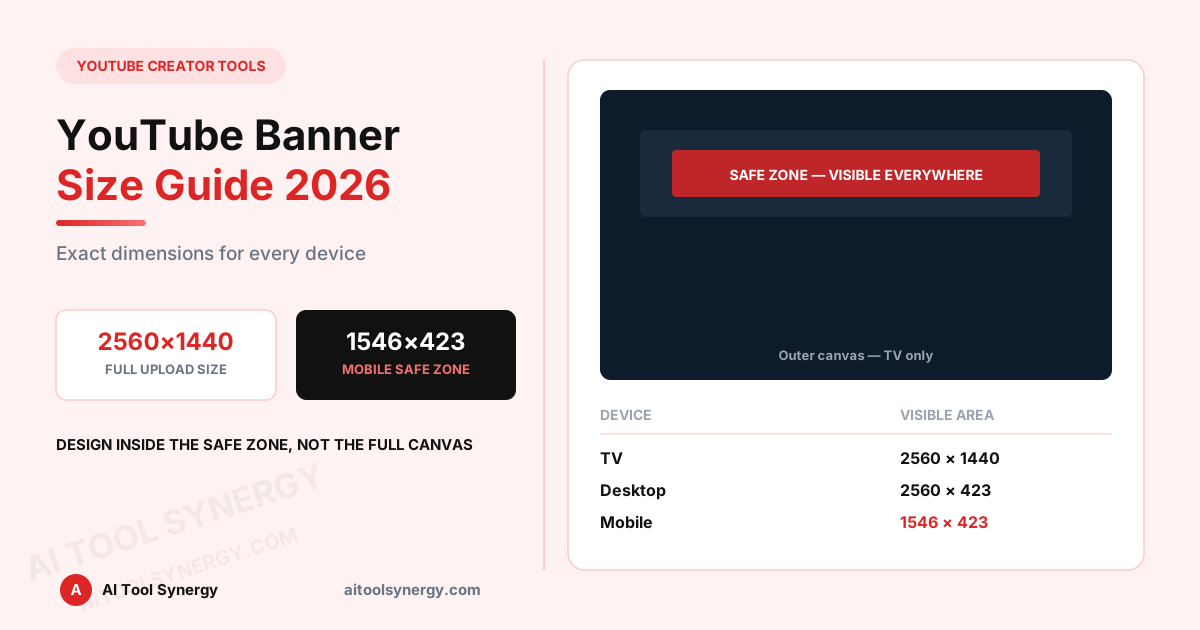
YouTube asks you to upload a single image at 2560 x 1440 pixels. That’s your full canvas. But here’s the part most guides skip: YouTube doesn’t display that entire canvas to every viewer. Depending on whether someone is browsing on a TV, desktop, tablet, or phone, YouTube crops the banner differently in real time — showing more or less of your image around the edges while always keeping the center visible.
This is why understanding YouTube banner size isn’t just about one number — it’s about designing within the zone that survives every crop.
Many creators find this counterintuitive at first, because most image uploads across the web use a single fixed dimension that displays identically everywhere. YouTube’s banner system works differently on purpose: it’s built to adapt a single uploaded image across wildly different screen shapes, from a widescreen television to a narrow phone screen held vertically. That flexibility is genuinely useful once you understand it, but it does mean the “correct” YouTube banner size has two answers depending on what you’re asking — the size YouTube wants you to upload, and the size that’s actually guaranteed to be seen.
If you only remember one number from this guide, make it this one: 1546 x 423 pixels, centered. That’s the true safe area, and it’s the number that should drive every design decision about where your logo, text, and branding actually sit on the canvas.
YouTube Banner Size by Device (Full Breakdown)
Here’s exactly what each device type shows from your uploaded 2560 x 1440 canvas:
| Device | Visible area (pixels) | % of full canvas shown |
|---|---|---|
| TV | 2560 x 1440 | 100% (full image) |
| Desktop | 2560 x 423 | Full width, cropped height |
| Tablet | 1855 x 423 | Center-cropped |
| Mobile | 1546 x 423 | Most heavily cropped — this is your safe zone |
Notice that mobile shows the smallest slice of your image. Since mobile traffic makes up a large share of YouTube viewing, this narrowest crop — 1546 x 423 pixels, centered — is what designers call the “safe area.” Anything important (your logo, channel name, upload schedule, contact info) needs to live inside that safe area or it risks disappearing entirely on phones.
It helps to think of your banner in three nested layers, like a set of picture frames: the outermost layer (2560 x 1440) is what TV viewers see in full — this is where decorative background elements, patterns, or wide photography can safely extend. The middle layer (roughly 2560 x 423 down to 1855 x 423) is what desktop and tablet users see — a wide horizontal strip. The innermost layer (1546 x 423, centered) is your true safe zone, visible on literally every device including the narrowest mobile crop. Anything you design should be visually checked against all three layers before you consider the banner finished, and running it through the YouTube Banner Resizer is the fastest way to preview all three at once.
Understanding the YouTube Banner Safe Zone
The safe zone is the single most important concept in getting YouTube banner size right. Picture your 2560 x 1440 canvas with a smaller rectangle centered in the middle — that inner rectangle, 1546 x 423 pixels, is guaranteed to be visible on every device, every time.
The safest workflow: design your full 2560 x 1440 background for visual richness (patterns, photography, gradients), but keep all critical text and logos strictly inside the centered 1546 x 423 safe area.
How to Resize Your Banner to the Correct YouTube Banner Size
You have two realistic paths to get your YouTube banner size exactly right:
Option 1: Design tools with built-in YouTube templates
Canva, Photoshop, and Figma all offer pre-set YouTube banner templates at 2560 x 1440 with visible safe-zone guides. This is the most control but requires some design comfort.
Option 2: Use a free resizer tool
If you already have a banner image at the wrong dimensions, our free YouTube Banner Resizer automatically resizes and crops your image to the correct 2560 x 1440 YouTube banner size, with a visual safe-zone overlay so you can confirm your logo and text will survive every device crop before you upload.
Why a dedicated resizer beats manual cropping
Manually cropping an image to 2560 x 1440 in a general-purpose photo editor gets the outer dimensions right, but it doesn’t tell you anything about the safe zone — you’re still guessing where the mobile crop line falls. A purpose-built YouTube banner resizer overlays the actual safe-zone boundary directly on your image while you adjust it, so you can see in real time whether your logo sits fully inside the 1546 x 423 zone or bleeds outside it. This turns a guessing game into a visual, immediate confirmation — and it takes seconds instead of the trial-and-error of uploading, checking on mobile, redesigning, and re-uploading.
YouTube Banner File Format and Size Requirements
Beyond pixel dimensions, YouTube also enforces technical file requirements that trip creators up:
| Requirement | Specification |
|---|---|
| File format | JPG, PNG, BMP, or GIF (no animated GIFs) |
| Max file size | 6MB |
| Minimum width | 2048 x 1152 pixels (below recommended 2560 x 1440) |
| Aspect ratio | 16:9 recommended for consistent cross-device display |
If your file exceeds 6MB, YouTube will reject the upload outright — compress your image before uploading rather than relying on YouTube to do it for you, since aggressive server-side compression can introduce visible artifacts around text and logos.
Why Is My YouTube Banner Blurry After Upload?
A blurry banner after getting the YouTube banner size technically correct almost always comes down to one of these causes:
YouTube Banner Size Mistakes That Cause Cropping
Beyond blur, the most common complaint creators have is text or logos getting cut off. This happens for a few repeatable reasons:
- Placing text near the top-left or top-right corners, which fall outside the safe zone on mobile
- Using a logo sized for the full 2560 x 1440 canvas without checking how small it appears in the 1546 x 423 safe area
- Designing on a desktop-only preview and never checking the mobile crop before publishing
- Assuming “centered” in your design tool means centered in YouTube’s safe zone — always verify with an actual safe-zone template, or confirm visually using the Banner Resizer‘s overlay before uploading
YouTube Banner Size vs Other Channel Art Elements
It’s worth knowing how banner size compares to other channel branding assets so you’re not designing all your creator assets to the same incorrect dimensions:
| Asset | Recommended size | Aspect ratio |
|---|---|---|
| Channel banner | 2560 x 1440 px | 16:9 |
| Channel profile picture | 800 x 800 px | 1:1 |
| Video thumbnail | 1280 x 720 px | 16:9 |
| Watermark/brand icon | 150 x 150 px | 1:1 |
If you’re also working on thumbnails, our YouTube Thumbnail Size Guide covers the same safe-zone concept applied to thumbnail dimensions specifically.
Testing Your Banner Across Devices Before Publishing
Once you’ve resized your image to the correct YouTube banner size, don’t rely on the YouTube upload preview alone — it typically only shows the desktop crop. Instead:
- Upload the banner and save changes
- Open your channel on a phone browser or the YouTube mobile app
- Confirm your logo, name, and any text are fully visible with no cropping
- Repeat on a tablet if you have one available
This five-minute check catches safe-zone mistakes before your audience sees a half-cropped logo.
Resize Your Banner to the Correct Size in Seconds
Upload your image and get a perfectly sized 2560 x 1440 YouTube banner with a visual safe-zone overlay — free, no signup.
Try the Free YouTube Banner ResizerYouTube Banner Size FAQ
The full upload size is 2560 x 1440 pixels, but only the centered 1546 x 423 pixel safe area is guaranteed to display on every device.
YouTube crops your banner differently per device. Mobile shows the smallest area — 1546 x 423 pixels centered — so anything outside that zone is hidden on phones.
6MB. Files larger than this will be rejected during upload, so compress your image beforehand if needed.
JPG, PNG, BMP, and GIF are accepted. Animated GIFs are not supported for channel banners.
Usually heavy JPEG compression, upscaling from a smaller source image, or designing at print DPI instead of 72 DPI for web.
The centered 1546 x 423 pixel zone of your 2560 x 1440 canvas that displays on every device, including mobile — the most heavily cropped view.
No. Banners, profile pictures, and thumbnails each have different recommended dimensions and aspect ratios — check each individually.
Upload it and view your channel on the YouTube mobile app directly, or use a resizer tool with a built-in safe-zone overlay before uploading.
Getting the YouTube banner size right comes down to one core idea: design for the full 2560 x 1440 canvas, but treat the centered 1546 x 423 safe zone as the only space guaranteed to survive every device. Once you internalize that distinction, cropping surprises stop happening entirely.
Related Reading From Authoritative Sources
For further reference, see YouTube’s official channel art specifications, Google’s YouTube branding guidelines, web.dev’s image optimization guide, and Adobe’s guide to image size and resolution.
Explore More Free YouTube Creator Tools
Thumbnails, embeds, QR codes, channel stats and more — all free, no signup required.
Browse YouTube Creator ToolsRelated Articles
Explore our full free tools directory or visit the AI Tool Synergy homepage for more free SEO, AI, finance, and creator utilities.