

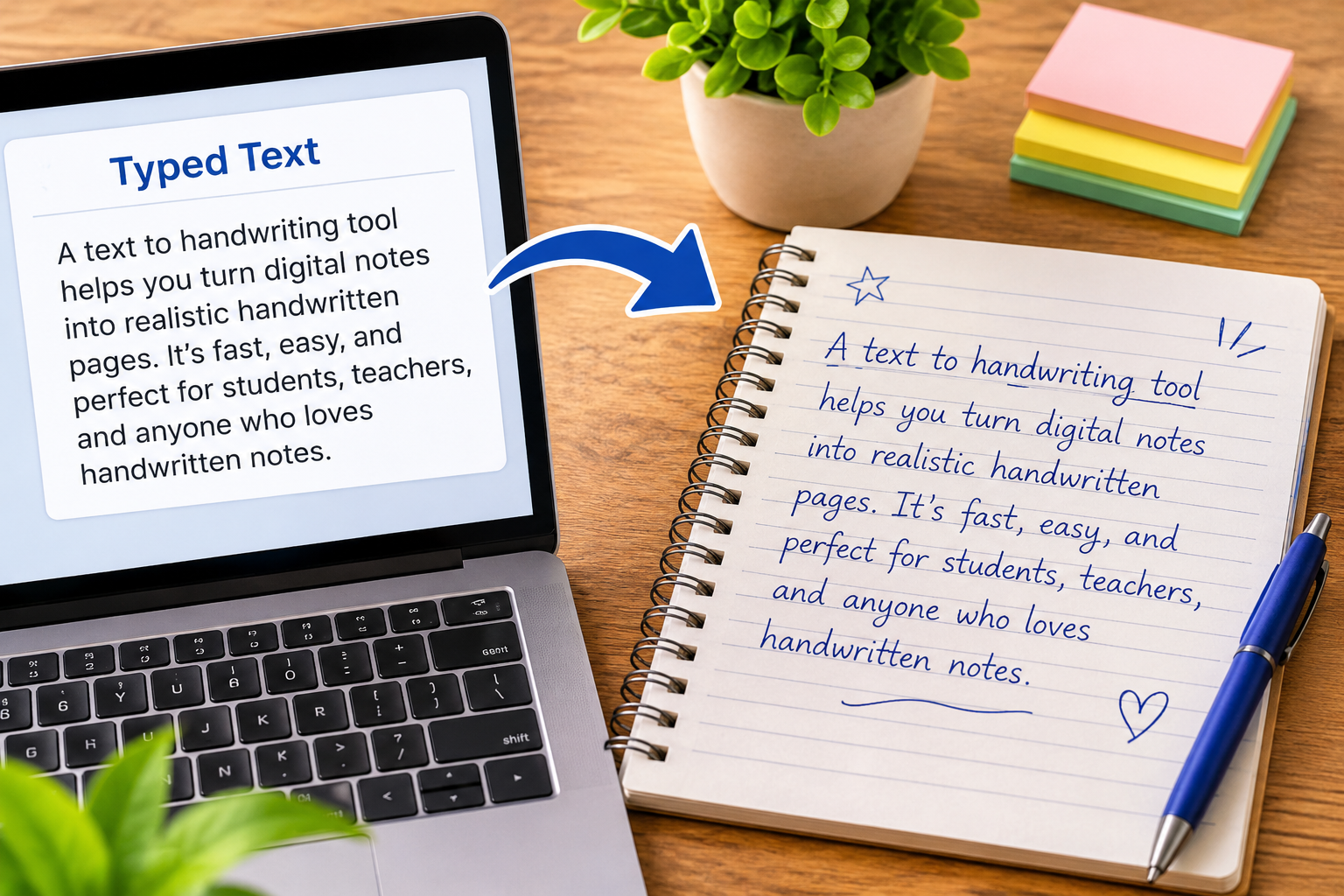
Use our Text to Handwriting Free Tool to turn typed notes into realistic handwritten pages with 19 fonts, 4 paper styles, clean or scanned PNG, and no signup.
Table of Contents
Text to Handwriting Free Tool
A Text to Handwriting Free Tool makes it simple for students, educators, and everyday writers to turn typed digital text into realistic handwritten pages in seconds. Writing long study guides, class notes, or personal letters by hand takes hours and often leaves you with hand cramps, ink smudges, and crossed-out mistakes when you spot a typo near the bottom of a page. With a modern Text to Handwriting Free Tool, you can type or paste your words once, choose a natural pen style and paper background, preview the finished sheet live, and download a crisp image file ready to print or share.
On AI Tool Synergy, the browser-based Text to Handwriting Free Tool works right away without requiring an account, subscription, or watermark removal fee. Built specifically for clean assignments, personal study sheets, and creative projects, it combines 19 realistic handwriting fonts, four authentic paper backgrounds, inline heading and marker styling, image uploads with opacity control, and a realistic scanned PNG export option. Whether you are organizing revision notes on a laptop or formatting a quick study sheet from your phone, using a dependable Text to Handwriting Free Tool saves hours of repetitive manual copying while keeping every line neat and readable.
Table of Contents
- What Is a Text to Handwriting Free Tool and How Does It Work?
- Why Students, Teachers, and Creators Use a Text to Handwriting Free Tool in 2026
- Key Features of the AI Tool Synergy Text to Handwriting Free Tool
- Exploring the 19 Handwriting Fonts and Four Paper Styles
- Step-by-Step Guide to Creating Realistic Pages with a Text to Handwriting Free Tool
- Clean PNG vs. Scanned PNG: Choosing the Right Download Format
- Adding Diagrams, Inline Formatting, and Natural Handwriting Variation
- Practical Tips to Make Digital Handwritten Notes Look Truly Authentic
- Comparing Free Online Note Converters and AI Writing Platforms
- Frequently Asked Questions About the Text to Handwriting Free Tool
What Is a Text to Handwriting Free Tool and How Does It Work?
A Text to Handwriting Free Tool is an online utility that renders standard typed characters onto a digital paper canvas using specialized cursive and print typefaces, realistic line spacing, and subtle pen-stroke variations. Instead of printing a sterile word-processor document in Arial or Times New Roman, the converter places each character along ruled, plain, grid, or notebook lines so the finished page looks like genuine pen-on-paper writing.
Behind the scenes, modern browser-based converters use HTML5 canvas rendering to draw your text directly inside your web browser. Because the rendering engine processes your paragraphs locally on your device, your notes appear almost instantly when you click the generate button, and your private study material never needs to be stored on external servers. You can edit typos, adjust font sizes, or switch ink colors in real time without wasting physical sheets of paper.
For anyone who types faster than they write by hand—or who wants clean, smudge-free study sheets without buying specialized calligraphy pens—a Text to Handwriting Free Tool bridges the gap between fast digital editing and the warm, personal appearance of handwritten pages.
Why Students, Teachers, and Creators Use a Text to Handwriting Free Tool in 2026
Digital documents are convenient for storage, yet handwritten pages remain uniquely effective for visual focus, personal communication, and structured study materials. Across classrooms, home offices, and creative studios, people rely on a Text to Handwriting Free Tool for several practical reasons.
First, speed and editing flexibility make a massive difference when working with long documents. When you write a multi-page summary by hand, a single missing sentence forces you to rewrite an entire sheet. Typing your draft first lets you fix spelling, reorganize paragraphs, and refine wording effortlessly before converting the final version into neat handwritten pages.
Second, readability stays consistent from the first line to the last. Natural handwriting often starts out neat at the top of a page and becomes rushed or slanted toward the bottom as your hand tires. A Text to Handwriting Free Tool maintains uniform legibility across every paragraph while still allowing subtle spacing and stroke variation so the page feels human rather than mechanical.
Third, creative and personal projects gain warmth without requiring advanced calligraphy skills. Writers preparing poetry cards, teachers designing engaging classroom worksheets, and journal keepers printing daily reflections can give their pages a handmade aesthetic in under a minute.
Key Features of the AI Tool Synergy Text to Handwriting Free Tool
Many online converters either lock their best fonts behind paid subscriptions or stamp distracting watermarks across the corner of your downloaded page. The Text to Handwriting Free Tool on AI Tool Synergy removes those barriers completely, delivering a full set of customization controls at zero cost.
Every user gets immediate access without creating an account, verifying an email address, or installing browser extensions. You simply open the page on your desktop, tablet, or smartphone, enter your text, adjust your visual settings, and download your finished sheet with zero watermarks.
The workspace gives you granular control over both page layout and typography. You can separate your document title into a dedicated heading box that renders larger, bold, and underlined in the exact same handwriting font as your body paragraphs—mirroring how a real person writes a title at the top of a notebook page. In addition, you can highlight specific words inline using bold or marker-style emphasis, upload up to three diagrams or sketches onto the same sheet with adjustable opacity, and toggle natural handwriting variation on or off.
Beyond handwriting conversion, AI Tool Synergy houses more than 25 complementary free utilities across education, SEO, finance, health, and productivity—including a PlantUML Diagram Generator for technical documentation and a Word Unscrambler for vocabulary practice—all accessible from one clean interface.
Exploring the 19 Handwriting Fonts and Four Paper Styles
A convincing result from any Text to Handwriting Free Tool depends heavily on pairing the right typeface with the right paper texture and ink color. Different subjects and occasions call for distinct pen styles, which is why having multiple font families grouped by visual character makes customization effortless.
| Style Category | Representative Fonts | Visual Character | Best Practical Use Case |
| Most Realistic | Kalam, Caveat | Balanced pen pressure with natural letter connections | Standard class notes, study summaries, and general assignments |
| Natural & Flowing | Homemade Apple, Shadows Into Light, Indie Flower | Relaxed cursive loops and expressive personal slant | Literature essays, personal letters, thank-you notes, and journals |
| Structured & Neat | Pangolin, Architects Daughter | Crisp, upright lettering with clean geometric spacing | Science notes, math formulas, lab reports, and technical outlines |
| Brush & Pen | Nanum Pen Script, Nanum Brush Script | Expressive stroke thickness with artistic flair | Creative quotes, greeting cards, posters, and study flashcards |
Alongside the 19 handwriting fonts, you can choose between four authentic paper backgrounds—classic ruled lined paper, clean plain white sheets, engineering-style grid paper, and traditional notebook paper—and pair them with six realistic ink colors: blue, black, red, pencil gray, green, or purple. Matching blue or black ink with ruled notebook paper creates an everyday academic look, while pencil gray on grid paper works wonderfully for technical sketches and calculations.
Step-by-Step Guide to Creating Realistic Pages with a Text to Handwriting Free Tool
Turning typed paragraphs into a finished handwritten sheet takes less than two minutes when you follow a straightforward workflow inside the Text to Handwriting Free Tool.
Step 1: Select Your Handwriting Font
Open the tool on AI Tool Synergy and browse the 19 available handwriting styles. If you are preparing standard study notes or an everyday assignment, Kalam and Caveat offer crisp legibility with natural pen curves. If you prefer a softer cursive look for personal letters or creative writing, Shadows Into Light or Homemade Apple provide an authentic hand-lettered feel.
Step 2: Enter Your Heading and Body Text
Type your document title into the dedicated heading field so it renders larger, bold, and underlined at the top of the sheet. Next, paste or type your main paragraphs into the body text box. The converter automatically handles line breaks, paragraph spacing, and word wrapping so your sentences flow naturally across the page width without overflowing the margins.
Step 3: Customize Ink Color, Paper Background, and Spacing
Pick your preferred ink color—blue and black remain the most popular choices for everyday notes, while red, green, purple, and pencil gray work well for annotations and headings. Choose your paper style (lined, plain, grid, or notebook), then fine-tune the heading size, body font size, letter spacing, and line spacing so your text sits cleanly on the ruled lines. Make sure the Handwriting Variation toggle is switched on for natural character-by-character spacing.
Step 4: Upload Supporting Diagrams (Optional) and Download
If your notes include a labeled diagram, chart, or simple drawing, upload up to three images directly onto the sheet and adjust their opacity so they blend naturally into the paper grain. Click Generate Handwriting to inspect the live canvas preview, make any final tweaks, and download your finished page as a Clean PNG or Scanned PNG.
Clean PNG vs. Scanned PNG: Choosing the Right Download Format
One of the standout capabilities of a modern Text to Handwriting Free Tool is the choice between two distinct export modes: Clean PNG and Scanned PNG. Knowing when to use each option helps your finished document match its intended purpose.
Clean PNG exports a sharp, high-contrast image with crisp ink edges and an unblemished paper background. This option is ideal when you plan to print your pages onto physical paper, insert crisp visual quotes into digital study decks, or share bright, easy-to-read notes on mobile screens.
Scanned PNG applies a subtle, realistic document-scanner finish across the entire page—complete with gentle scanner grain, warm paper tint, and soft edge vignette. Choosing Scanned PNG is especially valuable whenever you upload diagrams or sketches onto your page, because the unified scan filter blends both your rendered handwriting and your uploaded images under the exact same lighting and paper texture.
Adding Diagrams, Inline Formatting, and Natural Handwriting Variation
Basic text converters often produce rigid, uniform blocks of text that look like a computer font printed over a background image. A well-designed Text to Handwriting Free Tool solves that giveaway through three subtle realism features.
First, inline mixed formatting lets you highlight important terms inside a sentence rather than forcing every word on the page to share a single uniform weight. You can select key vocabulary words or section subheadings and apply bold or marker-style emphasis right alongside normal body text, recreating the way students underline or highlight key definitions while reviewing notes.
Second, image blending with opacity control allows visual learners to combine text and diagrams on a single sheet. Setting uploaded diagram opacity to around 85% to 90% lets the underlying lined or grid paper texture show gently through white image backgrounds, preventing harsh rectangular cutouts.
Third, handwriting variation introduces tiny, organic adjustments in character baseline and spacing across lines. Because human hands never place every letter with robotic mathematical uniformity, enabling variation gives long paragraphs a genuinely natural rhythm.
Practical Tips to Make Digital Handwritten Notes Look Truly Authentic
Getting the best visual results from a Text to Handwriting Free Tool comes down to a few simple formatting habits before you click download.
- Align line spacing with your chosen paper lines. When using ruled or notebook paper, adjust the line-spacing slider until the baseline of your handwriting rests neatly on top of the printed horizontal lines rather than drifting across them.
- Match your font choice to the subject matter. Neat, upright fonts like Pangolin or Architects Daughter look natural for science summaries and structured outlines, whereas flowing fonts like Caveat suit literature notes and personal correspondence.
- Keep paragraphs concise and readable. Breaking long walls of text into short, focused paragraphs with clear underlined headings mirrors how people naturally organize physical notebook pages.
- Extract text from photos or PDFs first. If your source notes are trapped inside a screenshot or scanned PDF, run the file through a free OCR text extractor, proofread the extracted characters for accuracy, and paste the clean text into your Text to Handwriting Free Tool.
- Use Scanned PNG whenever combining text and images. Applying the unified scan finish ties text and uploaded diagrams together seamlessly with zero watermarks.
Comparing Free Online Note Converters and AI Writing Platforms
Students, writers, and educators often combine different digital tools when preparing study materials or creative content. While AI writing assistants such as Copy.ai Tools help writers brainstorm essay outlines, summarize articles, and draft marketing copy, turning finished text into realistic handwritten pages requires a dedicated visual canvas renderer rather than a text-generation model.
| Comparison Criteria | AI Tool Synergy Text to Handwriting Free Tool | Basic Legacy Text Converters | General AI Copywriting Platforms |
| Core Purpose | Renders typed text into realistic handwritten pages | Places a single basic font onto a static background | Generates essays, summaries, and marketing copy |
| Font & Paper Variety | 19 realistic handwriting fonts + 4 paper styles + 6 ink colors | Typically 1 to 3 basic fonts and 1 plain background | Standard web interface text only |
| Realism & Formatting | Handwriting variation, inline bold/marker, image opacity | Uniform spacing with no inline emphasis or image support | Not designed for visual handwriting output |
| Export Quality & Cost | 100% free Clean PNG & Scanned PNG with zero watermarks | Often adds watermarks or restricts high-res downloads | Tiered subscriptions and usage limits |
| Account & Privacy | Zero signup required; renders directly in browser | Frequently requires login or server uploads | Account registration required |
Pairing clear writing workflows with a specialized Text to Handwriting Free Tool lets you draft, edit, and format authentic handwritten-style pages in a fraction of the time it takes to copy notes manually.
Frequently Asked Questions About the Text to Handwriting Free Tool
Is the Text to Handwriting Free Tool completely free with no watermarks?
Yes. The Text to Handwriting Free Tool on AI Tool Synergy is 100% free to use with no account registration, no paid tiers, and zero watermarks on either Clean PNG or Scanned PNG downloads.
Can I use the Text to Handwriting Free Tool on my phone or tablet?
Yes. Because the converter runs directly inside your mobile or desktop web browser using HTML5 canvas rendering, it works smoothly on Android phones, iPhones, iPads, Chromebooks, Windows PCs, and Macs without installing any app.
How many handwriting fonts and paper styles are included?
You can choose from 19 carefully selected handwriting fonts grouped across realistic, natural cursive, structured neat, and brush styles, paired with four paper backgrounds (lined, plain, grid, and notebook) and six ink colors.
Can I add diagrams or images to my handwritten page?
Yes. You can upload up to three images or diagrams onto the same page and adjust their opacity slider so they blend smoothly with your chosen paper texture and handwritten text.
What is the difference between Clean PNG and Scanned PNG downloads?
Clean PNG gives you a bright, high-contrast image ideal for crisp printing and digital screens, while Scanned PNG applies a realistic photocopier and scanner texture with warm paper tint and subtle grain—making text and uploaded diagrams look like they were physically scanned together.