


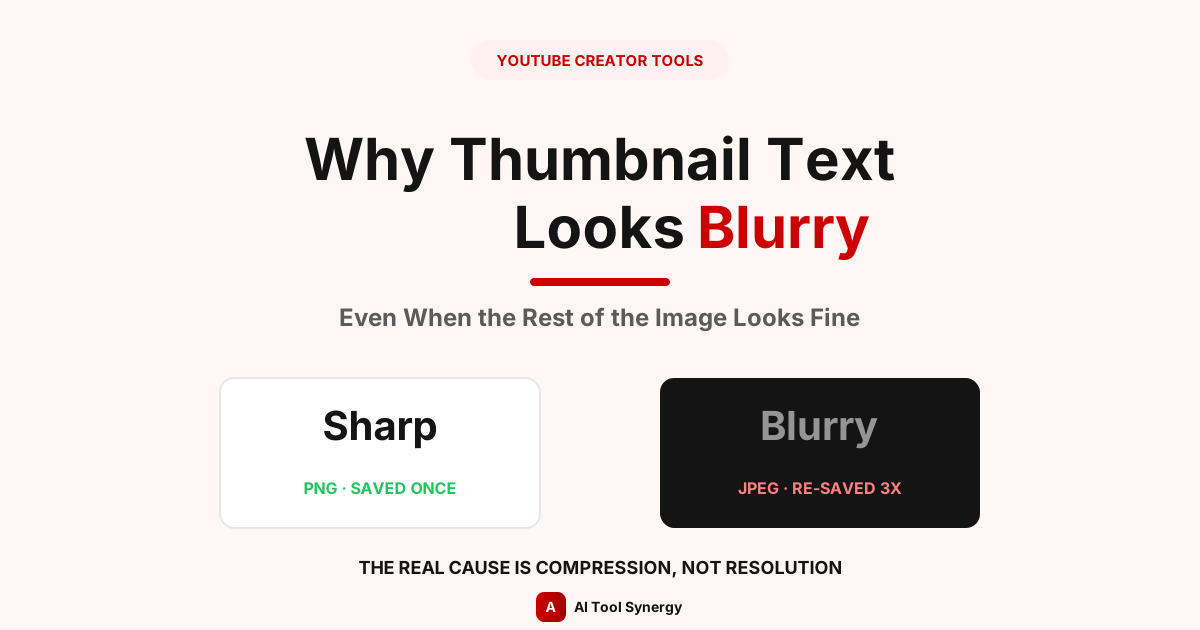
Why YouTube Thumbnail Text Looks Blurry (Even When the Image Looks Fine)
If your YouTube thumbnail text looks blurry while everything else in the image still looks reasonably sharp, resolution probably isn’t your problem — most guides lead with “upload at 1280×720,” but a lot of creators already do that and still end up with soft, fuzzy text. The real explanation is usually how YouTube’s compression treats fine edges and small text specifically, which behaves very differently from how it treats a photo.
This is a genuinely common, frustrating experience — the image looks crisp in your design tool, then the moment it’s live on YouTube, the text edges look soft or slightly smeared. This post covers exactly why YouTube thumbnail text looks blurry under these conditions, and what actually fixes it.
Why YouTube Thumbnail Text Looks Blurry (Even When the Image Looks Fine)
Compression algorithms don’t treat every part of an image equally. Smooth gradients and photographic detail compress with very little visible damage, but sharp, high-contrast edges — exactly what text is made of — are where lossy compression does the most visible damage. That’s the core reason YouTube thumbnail text looks blurry specifically, even when a photo in the same thumbnail looks completely fine.
It’s Probably Not Your Resolution
Before going further, it’s worth ruling this out cleanly: if you’re already uploading at 1280×720 — the resolution YouTube’s own upload encoding guidance recommends — and your YouTube thumbnail text looks blurry anyway, resolution isn’t the cause. A too-small source image would blur the entire thumbnail evenly — photo, background, and text all softening together. If it’s specifically the text that looks off while everything else looks sharp, that’s a strong sign you’re dealing with a compression issue, not a resolution one. You can confirm exactly what size is live for any video using our Thumbnail Downloader before troubleshooting further.
The Real Cause: How Compression Treats Text Differently
Lossy compression works by discarding the visual information viewers are least likely to notice missing, based on how the human eye perceives smooth versus sharp transitions. Text is almost entirely sharp transitions — hard edges between a letter and its background — which is exactly the kind of detail lossy compression targets first. A blue sky or a blurred background can lose a lot of data with barely any visible difference; a thin font stroke loses a little data and becomes visibly soft immediately.
Check What’s Actually Live on Your Thumbnail
See the real, current file YouTube has on record for any video — not a cached or resized version.
Check a Video FreeWhy PNG Beats JPEG When Your Thumbnail Text Looks Blurry
Per MDN’s own image format documentation, PNG is a lossless format — it preserves every pixel exactly as designed, which is exactly what text-heavy graphics need. JPEG is lossy by design, trading some quality for a smaller file size, and that trade-off shows up first and worst on sharp text edges. If your source design has text on it, exporting as PNG before uploading is one of the simplest fixes available, and it’s directly supported — YouTube’s own custom thumbnail requirements accept PNG alongside JPEG and GIF, so there’s no compatibility downside to choosing it.
| Format | Compression | Best for |
|---|---|---|
| PNG | Lossless | Text, logos, sharp graphic elements |
| JPEG | Lossy | Photos with smooth gradients, no text overlay |
The Double-Compression Trap Most Creators Don’t Know About
Here’s a detail that explains why YouTube thumbnail text looks blurry even for creators who are careful about their export settings: every time a JPEG is opened, edited, and re-saved, it goes through another full compression pass. According to Cloudinary’s technical explanation of JPEG generation loss, this compounding damage happens regardless of what quality setting you choose on the second save — re-saving at a higher quality than the original doesn’t undo the first pass’s damage, it just adds a second, different round of compression artifacts on top of it. If your design tool exported a JPEG, then you edited that JPEG and saved it again, then YouTube compressed it a third time on upload, that’s three compounding passes before a viewer even sees it. This is one of the most common, least obvious reasons a YouTube thumbnail text looks blurry despite a creator genuinely trying to do everything right.
Font Choice Matters More Than You’d Think
Beyond format, the font itself affects how well text survives compression. Thin, delicate fonts with fine strokes lose definition fastest, since there’s very little pixel data to begin with before compression even starts removing more — this is a common reason a YouTube thumbnail text looks blurry even on a correctly-sized, correctly-formatted PNG. Bold, thick-stroke fonts — generally with a stroke width of at least 2 to 3 pixels at your thumbnail’s actual display size — hold up dramatically better, because there’s simply more visual data for the compression algorithm to preserve before the letterform becomes illegible.
How to Test Whether Compression Is Really the Cause
Before assuming, it’s worth confirming. Here’s how to check whether your YouTube thumbnail text looks blurry specifically because of compression rather than something else:
- Zoom into just the text at 100%. If you see faint blocky patterns or soft “halos” around letter edges, that’s a compression artifact, not a resolution problem.
- Compare your original design file to the live version. If your source file looks sharp and the uploaded version doesn’t, something in the export or upload pipeline introduced the loss.
- Check the file format you exported. If it’s JPEG, that’s your most likely single cause.
Download the Real Thumbnail File to Compare
Grab the exact HD image YouTube is actually displaying, to compare directly against your original design.
Try the Thumbnail DownloaderWhat Actually Fixes It
- Export as PNG, not JPEG, for any thumbnail with text or sharp graphic elements.
- Save once, not repeatedly. Finish all your edits before the first export rather than repeatedly opening and re-saving the same file.
- Use bold, thick-stroke fonts at a size that’s still comfortably readable at small display sizes, not just at full resolution.
- Upload the full 1280×720 source so YouTube’s own compression has as much original detail as possible to work with.
Does This Only Affect Text, or the Whole Thumbnail?
Compression affects the entire image, but its visible impact is uneven. Photos and smooth backgrounds tolerate it well, which is exactly why the rest of your thumbnail can look completely fine while specifically the text looks soft — this is the single biggest reason a YouTube thumbnail text looks blurry report turns out to be confusing at first glance. It’s not that text is being treated worse on purpose, it’s that text has the least tolerance for the kind of data loss lossy compression introduces everywhere.
Quick Checklist Before You Re-Upload
If your YouTube thumbnail text looks blurry right now, work through this in order: confirm you’re uploading at 1280×720, switch your export format to PNG if it’s currently JPEG, check you haven’t re-saved the same JPEG multiple times, and increase your font’s stroke weight if it’s especially thin. These four changes cover the overwhelming majority of cases where thumbnail text specifically looks soft. Once you’ve re-uploaded, check the result directly with the Thumbnail Downloader rather than relying on how it looks in your browser’s cache.
FAQ: Why YouTube Thumbnail Text Looks Blurry
This is almost always compression, not resolution. Sharp text edges are hit harder by lossy compression than photos or smooth backgrounds, which is why the text can look soft while the rest of the image still looks sharp.
PNG. It’s lossless and preserves sharp edges exactly, which matters far more for text than for a plain photo. YouTube accepts PNG the same as JPEG, so there’s no downside.
Yes. Each save applies a fresh compression pass on top of the previous one’s damage, a cumulative effect called generation loss. Saving at a higher quality on the second pass doesn’t reverse the first pass’s damage.
Bold, thick-stroke sans-serif fonts, generally at least 2-3 pixels wide at your thumbnail’s actual display size. Thin, delicate fonts lose legibility fastest.
Not really — 1280×720 is already YouTube’s recommended maximum for thumbnails, and the compression behavior that affects text is independent of resolution once you’re already at or above that size.
Paste the video into our free YouTube Thumbnail Downloader to see and download the real, current file, which you can compare directly against your original design.
Yes — the same compression behavior applies regardless of whether the thumbnail is for a standard video or a Short, since it’s a property of how the image itself is compressed, not the video format.
Yes — re-export your original design as a fresh PNG and upload it as a new custom thumbnail. There’s no way to “fix” the already-compressed version in place.
When YouTube thumbnail text looks blurry while the rest of the image looks fine, the cause is almost always compression rather than resolution — specifically how lossy formats handle sharp edges, compounded by repeated JPEG re-saves. Switching to PNG, saving once, and using a bold enough font solves the overwhelming majority of cases where a YouTube thumbnail text looks blurry even though nothing else about the design changed.
Check Your Thumbnail’s Real Quality
See the exact file YouTube has live for any video, free and unlimited.
Use the Thumbnail Downloader